
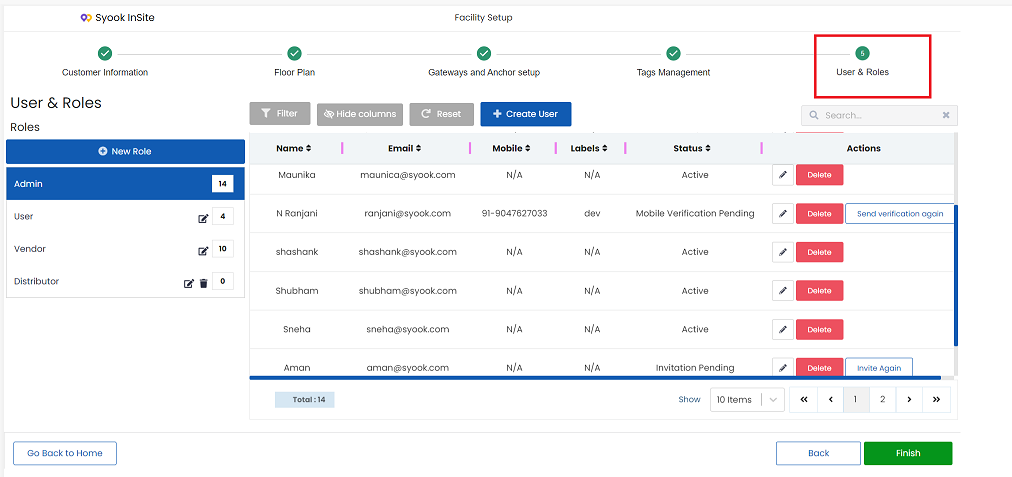
- Click on the User and Roles as shown below.
- The below image shows the roles and users of each role.
Role Creation
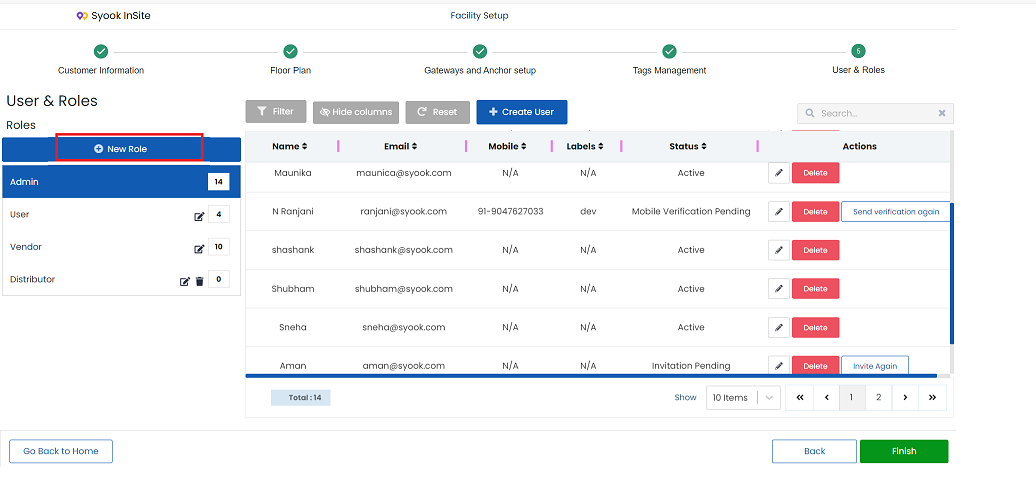
- Click on the + New Role button as shown below
- The below screen appears.
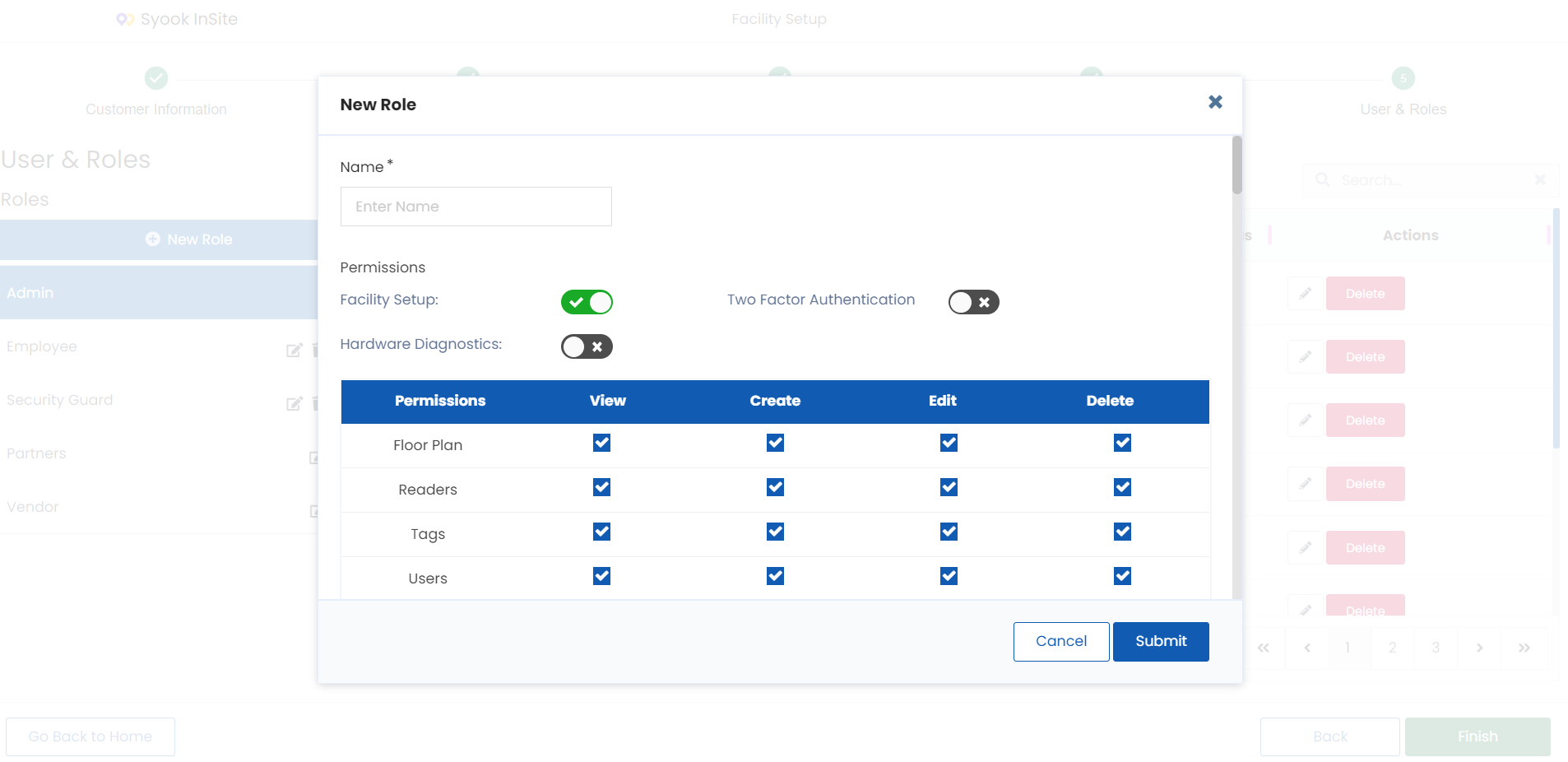
- Enter the name of the role
- Enable / disable hardware diagnostics and facility setup
- 2FA is enabled for Admin role by default. For other roles, if required, this can be enabled / disabled.
- Enter the required permissions for floor plan, readers, tags, users and modules.
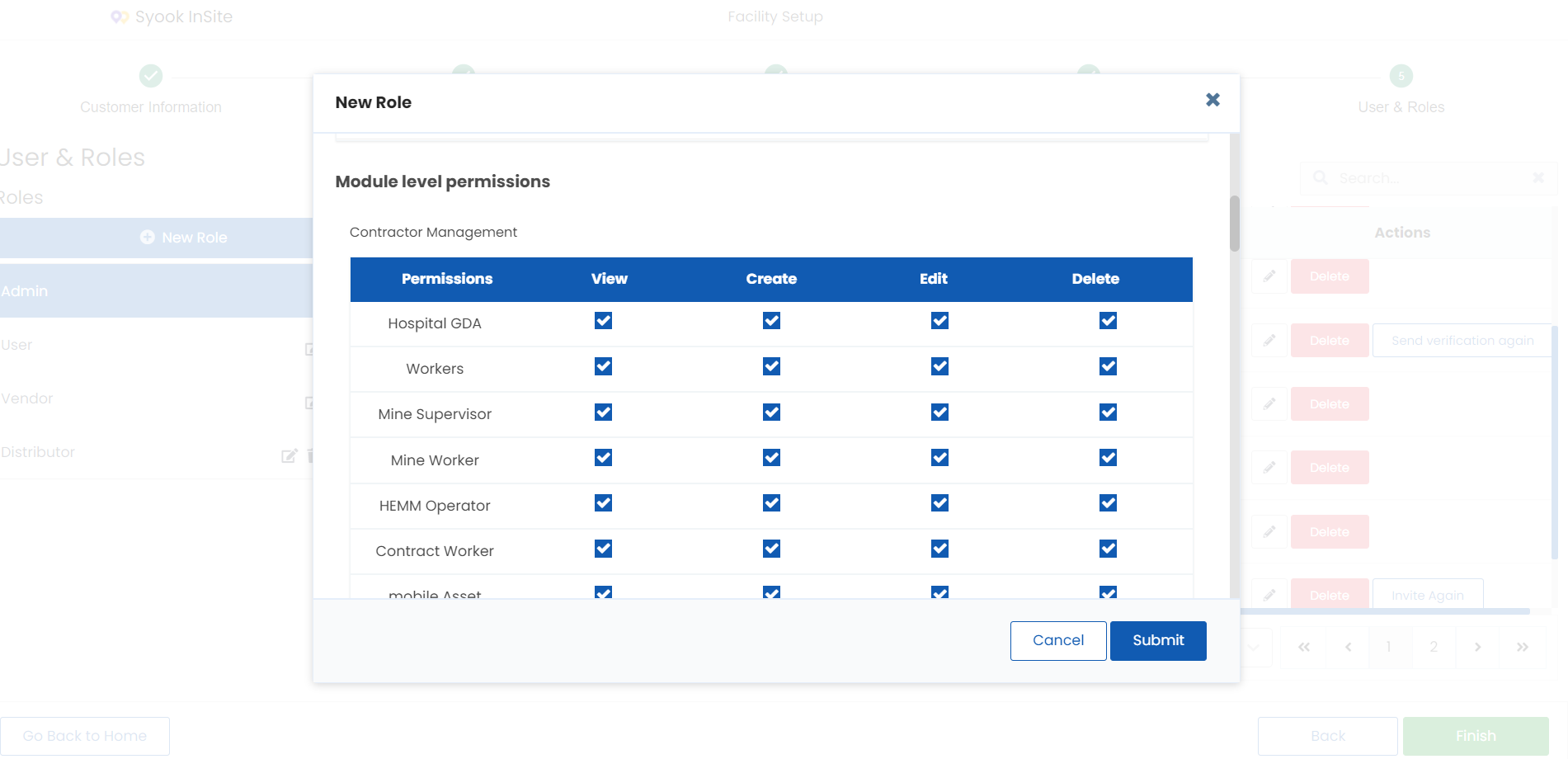
- Enter the required permissions for each module as shown above.
- Click on the Submit button. This Creates the Role.
- Once the role is created, users can be created for that role.
- Permissions cannot be edited for Admin role. Admin role has full access to the system.
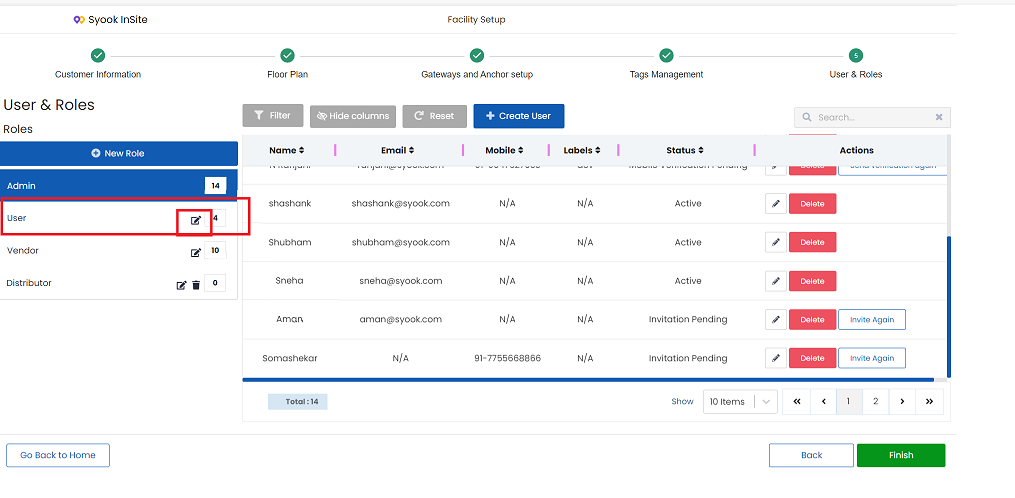
- For all custom roles, edit icon is available as shown below to modify the permissions.
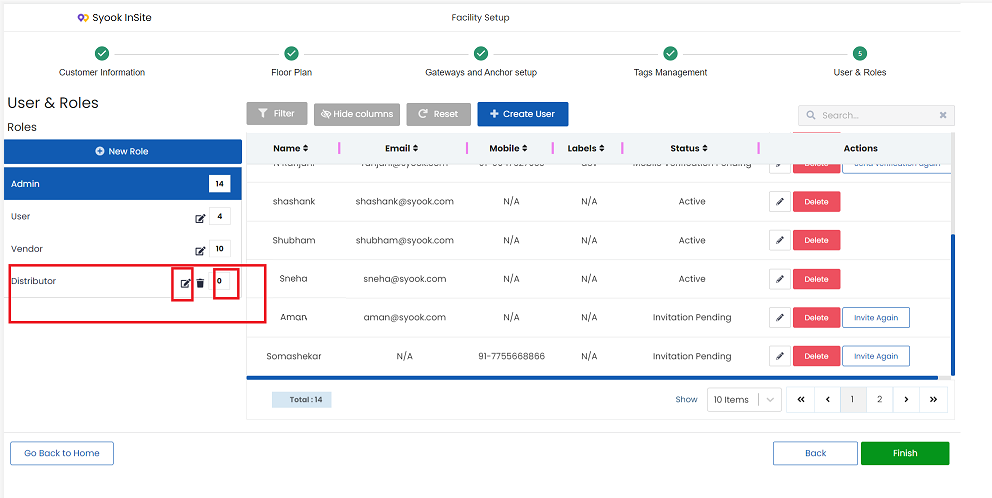
- When no users are created for a role, delete option is available for that role as shown below.
User Creation
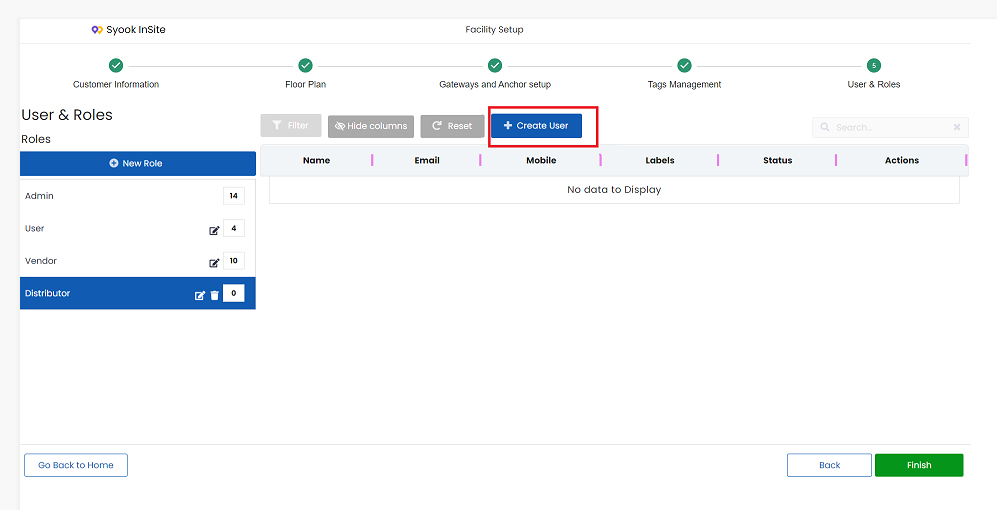
- Click on the required role and click on the + Create User button as shown below.
- Enter the name of the User
- Enter the Email ID
- Enter the Mobile number
- Select the required role
- Click on the Submit button
- Once the user is created, the user will receive an email from support@syook.com with the subject as ' Invitation Instructions'
- User has to click on the link in the email and set their required password.
- Once the password is set, the user will be able to login to the Insite system.
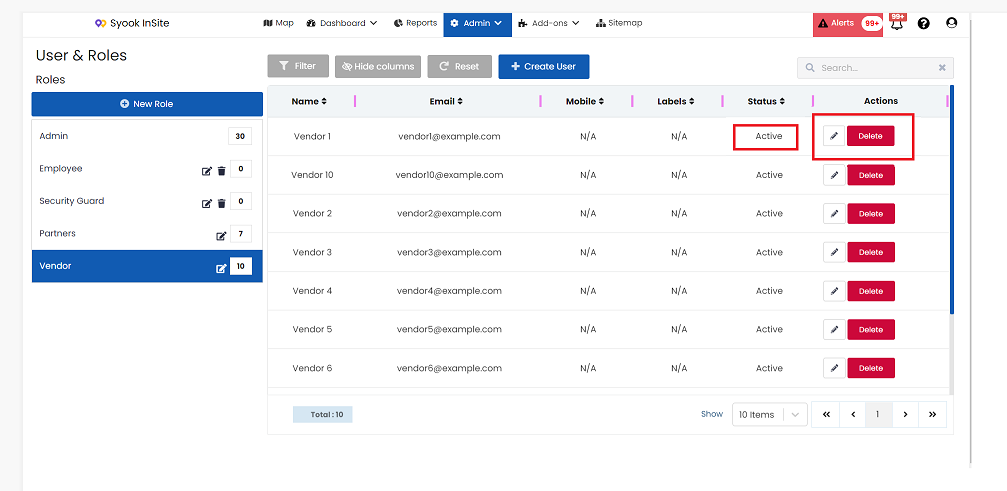
- Once the user has set the password, their status will be shown as active as shown below.
- Edit and Delete options are available for the users as shown below.
- If the mobile number is updated and if the user has not verified the mobile number, the following status will be shown
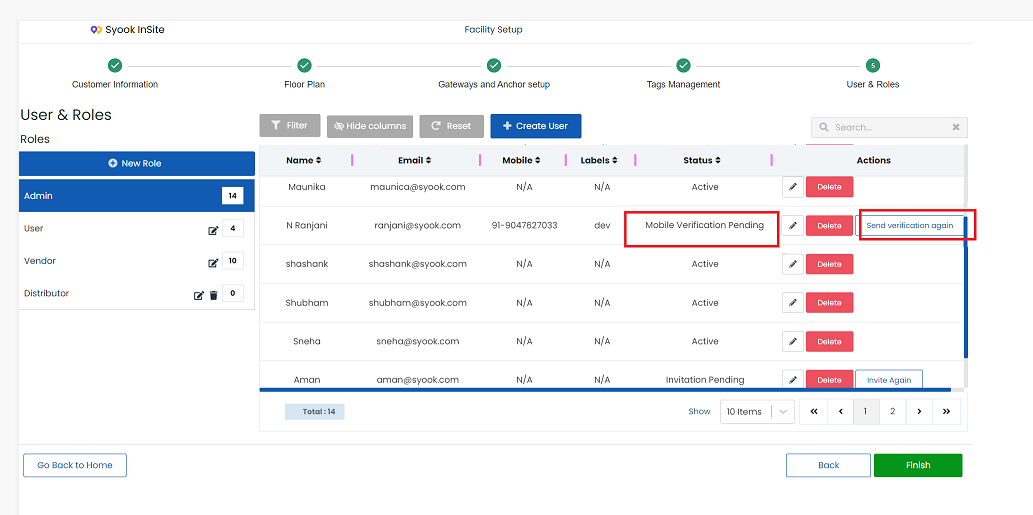
- If user is not active, click on the Send Verification again / Invite again button to send the link again for activation.