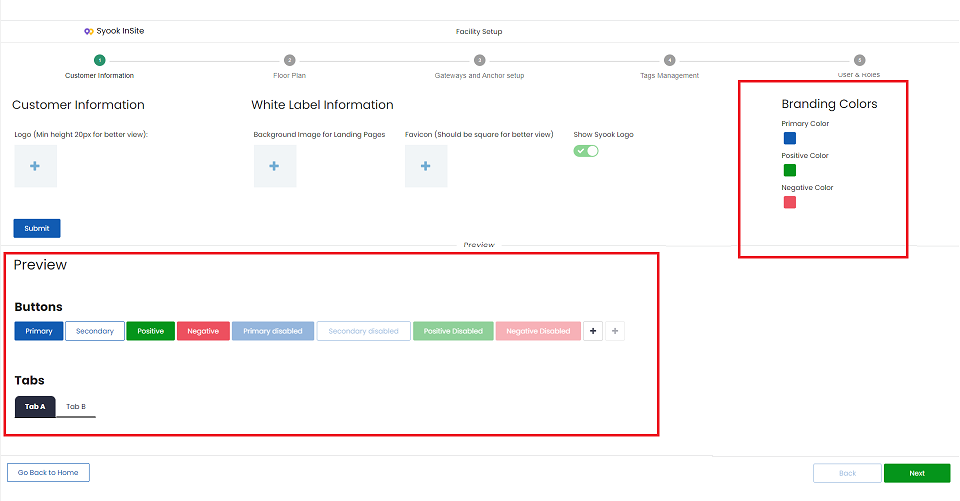
Update Customer Information
- Click on Admin -> Facility Setup -> Customer Information
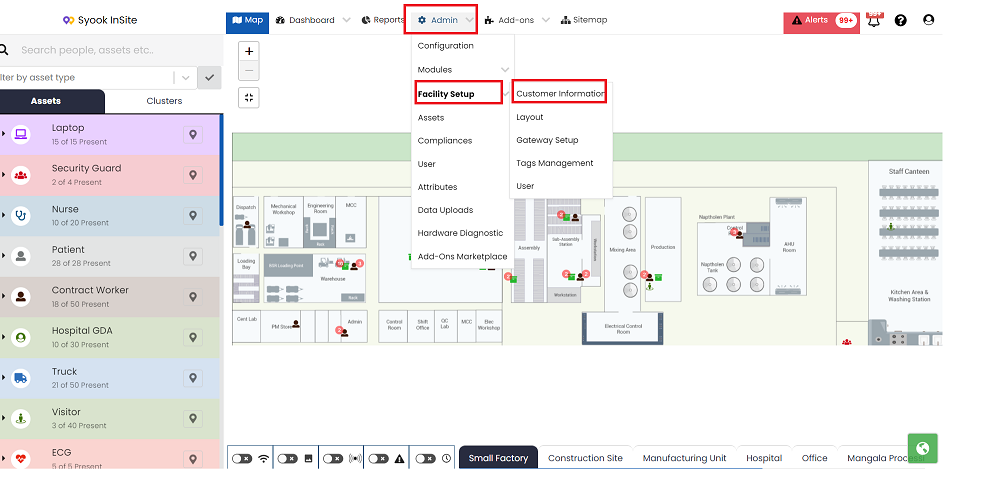
Clicking on Customer Information, the following details can be updated.
- Upload Logo
- White Label Information
- Background Image for Landing Page
- Favicon
- Show Syook Logo
- Branding Colors
Upload Logo
- Click on the '+' icon to upload the logo.
- Select the required logo and click on the Submit button.
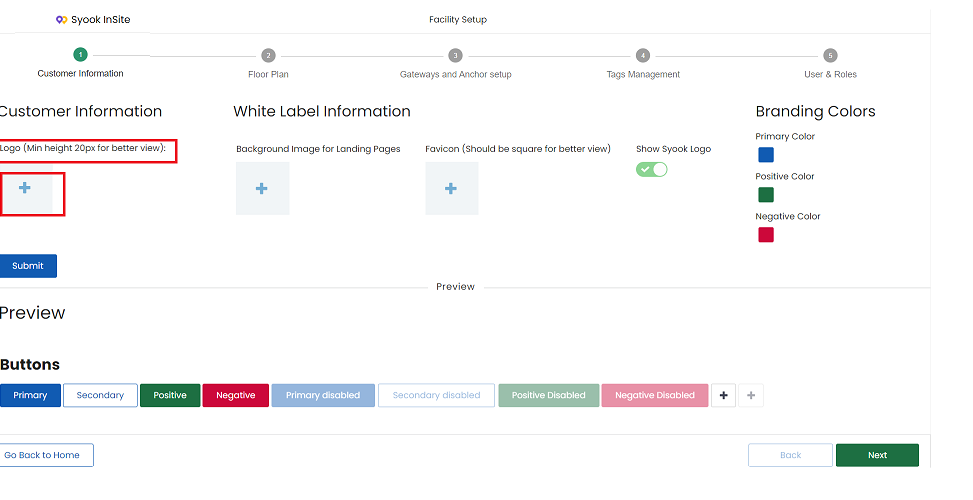 The image uploaded here will be shown on the left top corner along with the Syook logo.
White Labelling Information
Background Image
- Click on the + icon as shown below.
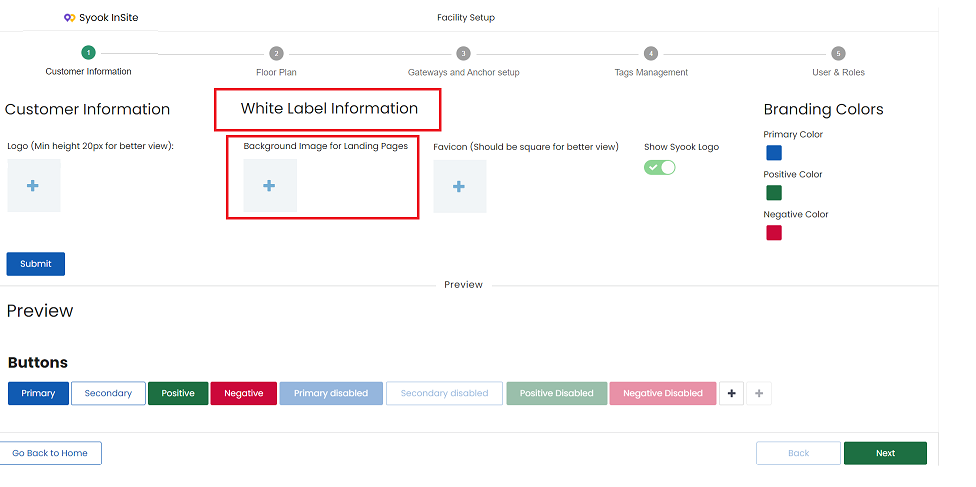
- Select the required image.
- The selected image will be shown in the login page
Favicon
- Click on the + icon and select the required favicon.
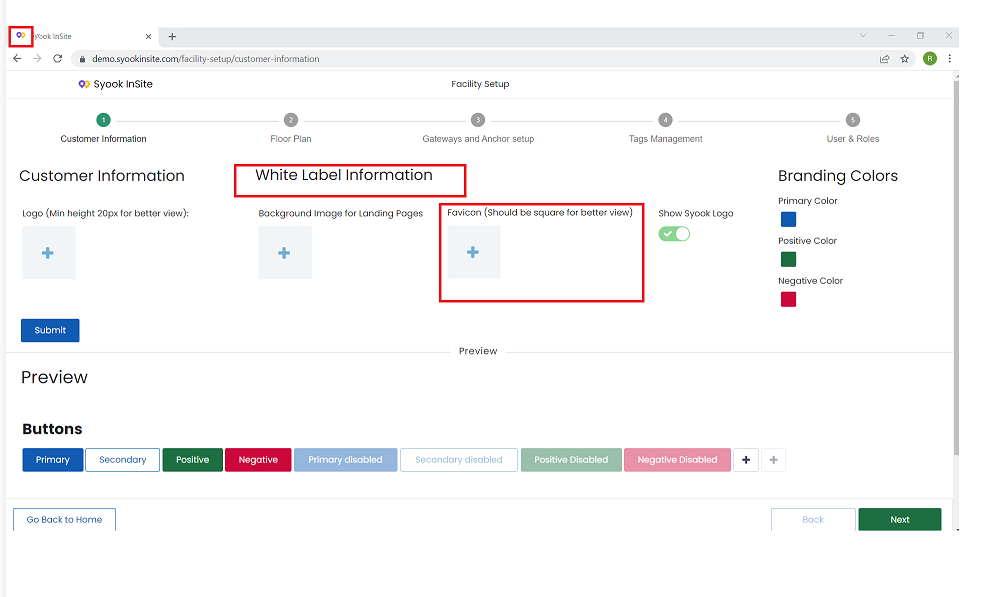
- Selected image will be shown in the url.
- By default, the Syook logo will be shown.
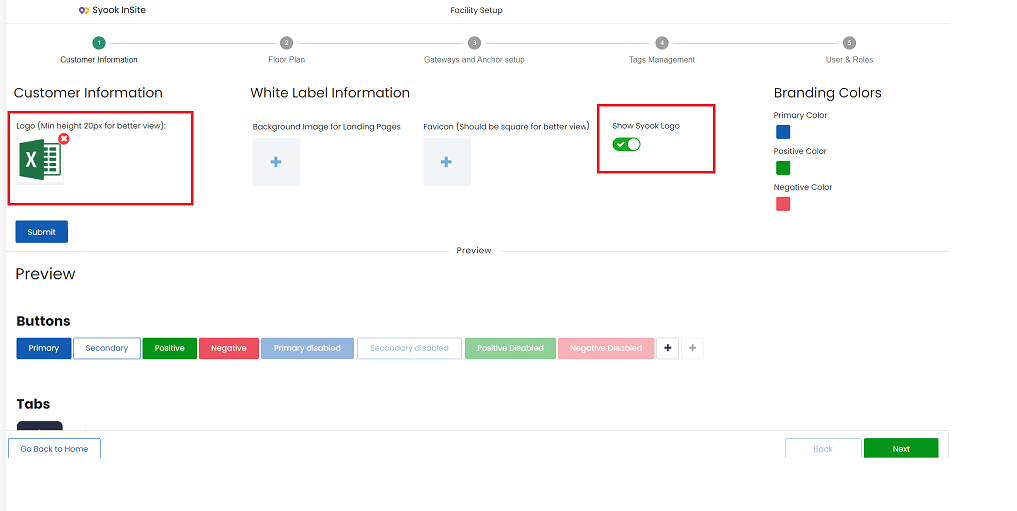
Show Syook Logo
- When this is enabled, the Syook logo will be shown on the left top.
- By default, it will be enabled.
- If the logo is uploaded, we have the option to disable the Syook Logo as shown below.
- If the logo is not uploaded, the Syook logo cannot be disabled.
Branding Colors
- Color selected as Primary color will be the same all over the application for all buttons and Site Map Page.
- Color selected for Positive will be shown for the submit buttons
- Negative color will be shown for the cancel buttons
- Preview is available for all the colors in the customer information page as shown below.