
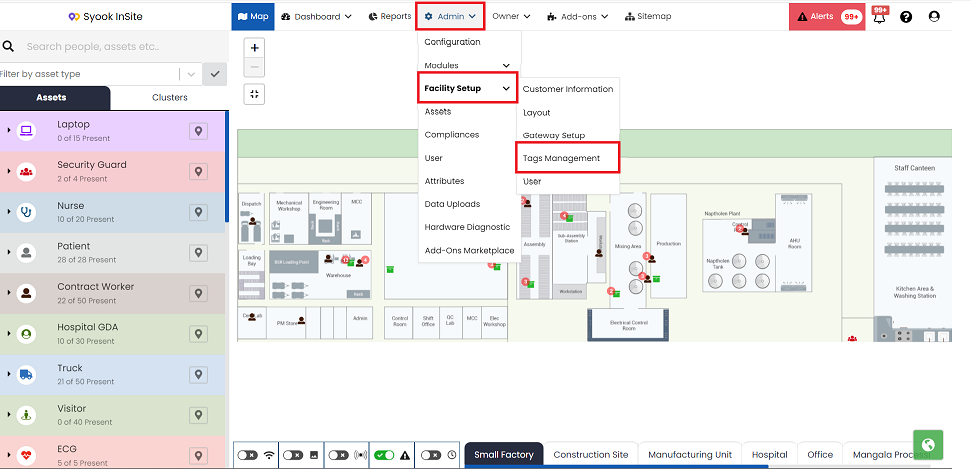
- Click on Admin -> Facility Setup -> Tags Management
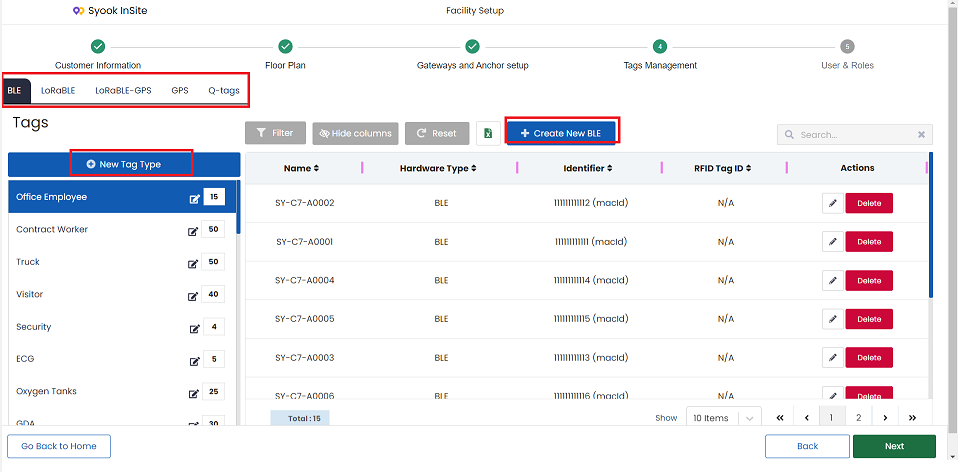
- All the available Tag types and tags of each type can be created / viewed.
- Click on + New Tag Type
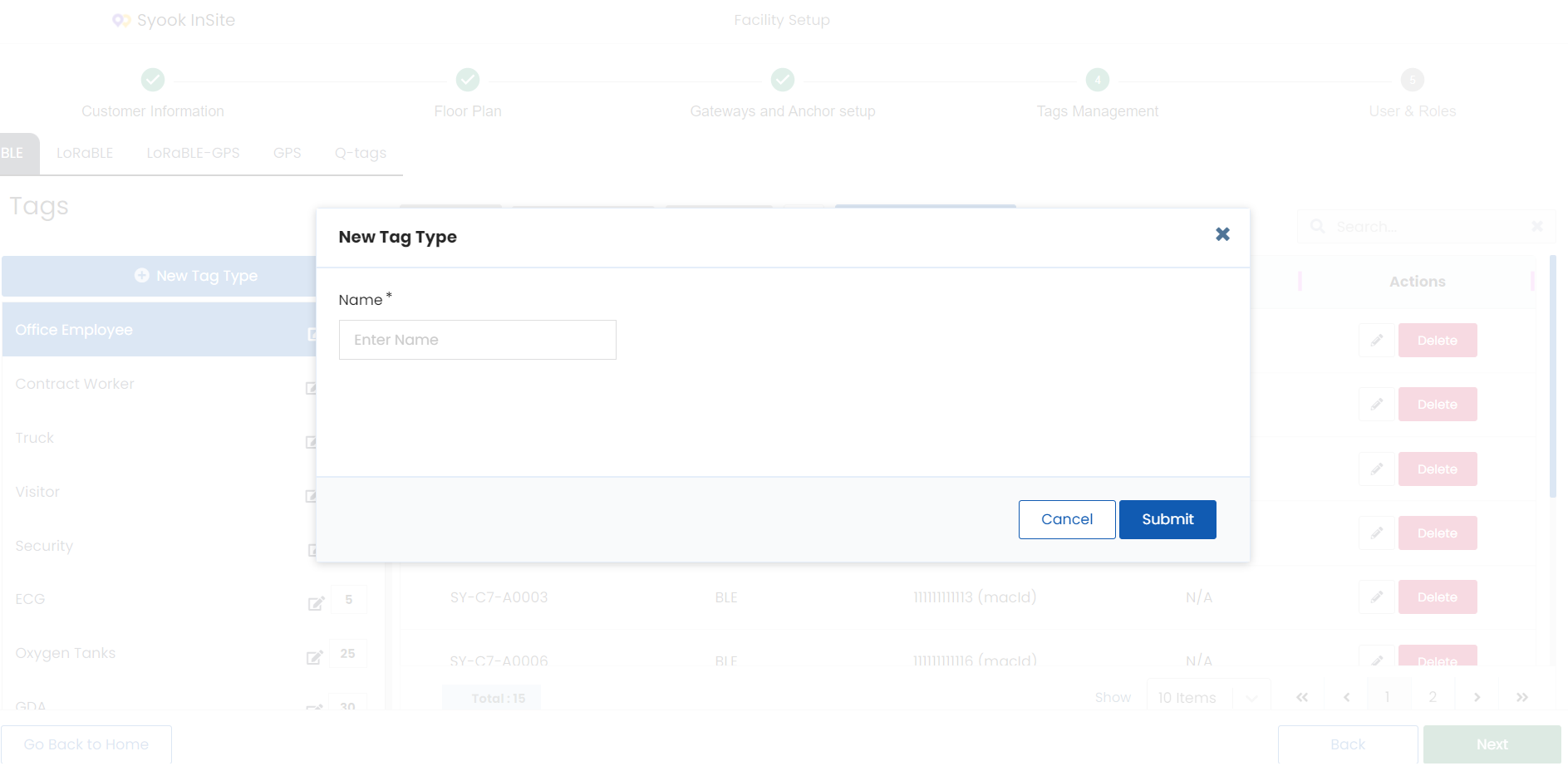
- Enter the name of the Tag type. Eg: Employees.
- Click on the Submit button.
Once the tag types are created, tags can be created.
Available Tags are
1. BLE
2. LoRaBLE
3. LoRaBLE-GPS
4. GPS
5. Q-Tags
BLE
- BLE tags are used with BLE Gateways.
- Click on the + Create NEW BLE
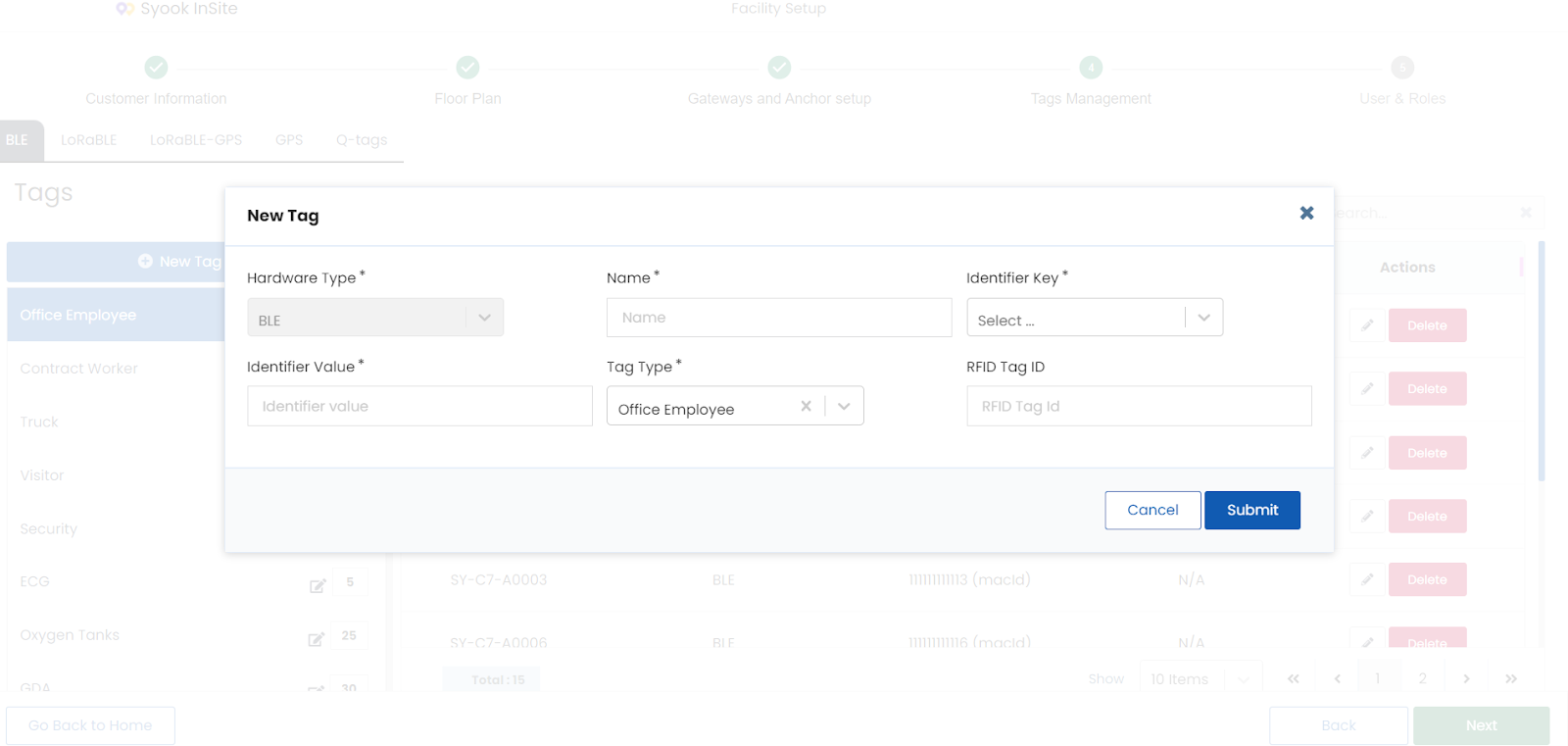
- Hardware type is selected as BLE by default.
- Enter the name, select the identifier key, enter the identifier value and select the required tag type
- Enter the RFID Tag ID
- Click on the Submit button to create the BLE Tag.
The following identifier keys are available.
Macid
DevEUI
Serialnumber
Majorminor
Deviceid
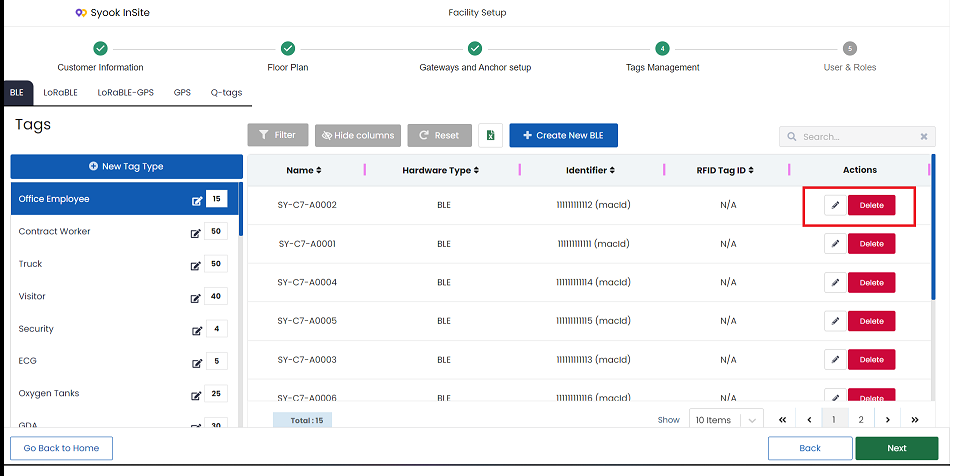
- Click on the required tag type to view the tags created.
- Edit and Delete options are available for each tag.
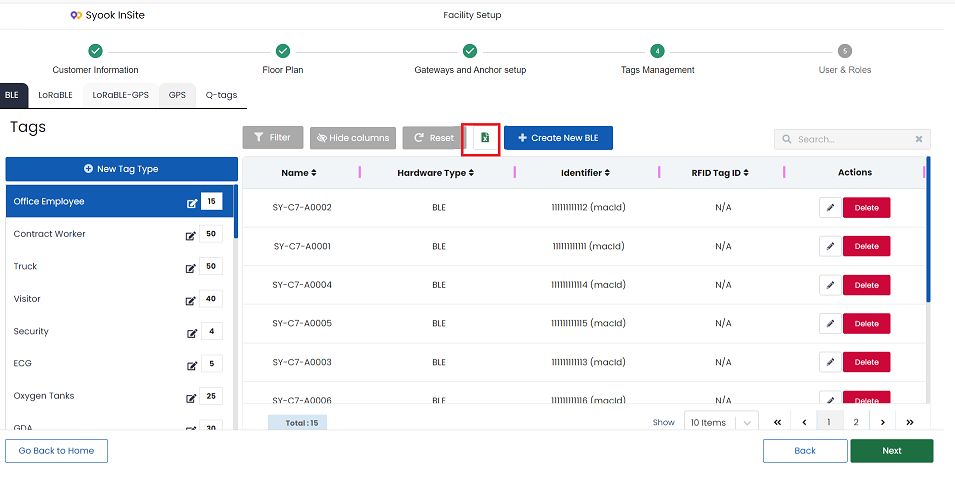
- All the tags details can be downloaded in an excel sheet by clicking on the excel icon as shown below.
LoRaBLE
- This will be shown if TCL location Engine Add-on is enabled.
- Click on the LoRaBLE tab.
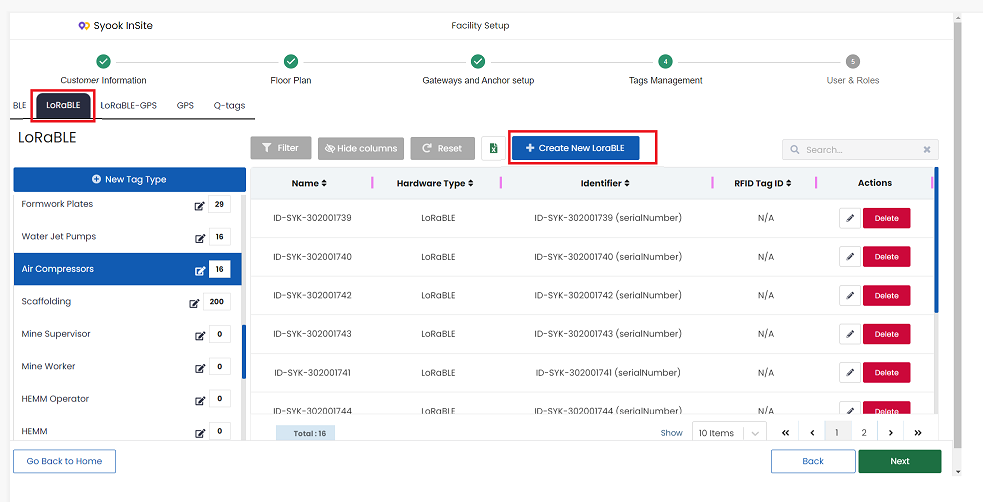
- Click on the + Create New LoRaBLE
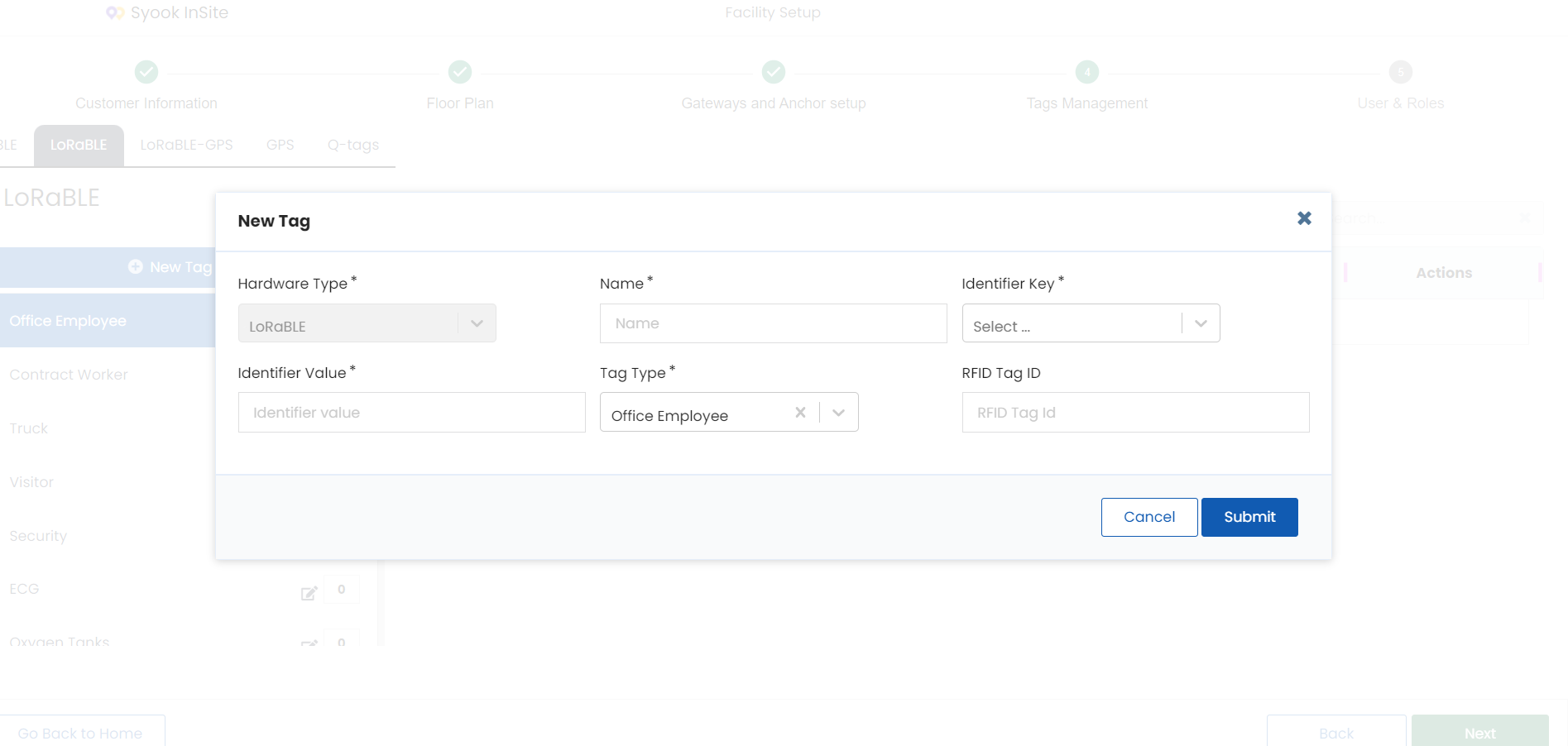
- Hardware Type is LoRaBLE by default.
- Enter the name of the tag
- Select the identifier key
- Enter the identifier value
- Select the Tag Type
- Click on the Submit button.
The following identifier keys are available.
Macid
DevEUI
Serialnumber
Majorminor
Deviceid
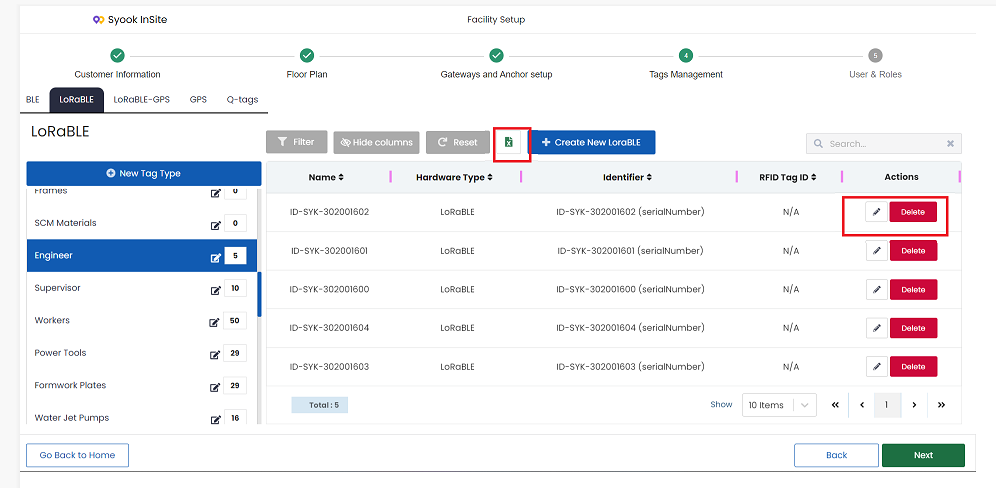
- Edit and delete options are available for the tags
- The tag details can be downloaded in an excel sheet by clicking on the excel icon as highlighted above
LoRaBLE - GPS
- Click on the LoRaBLE-GPS tab as shown below.
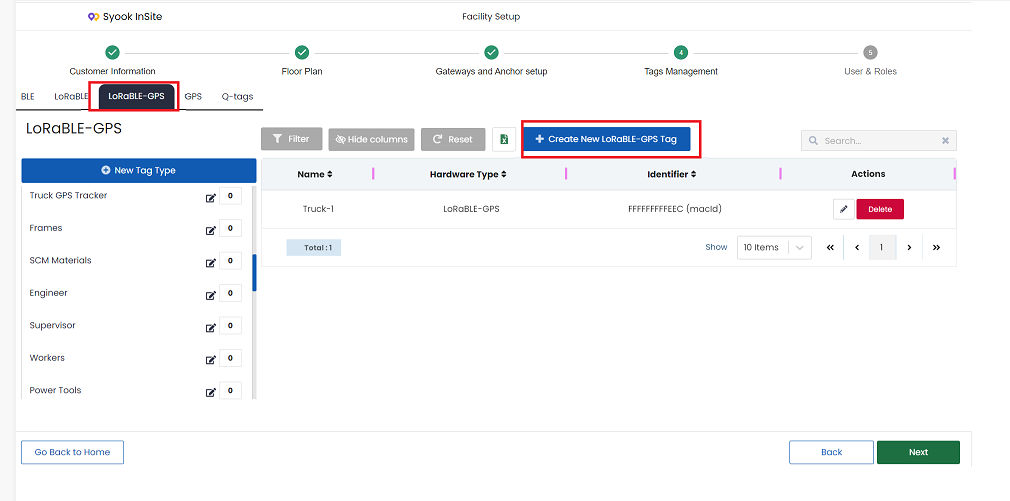
- Click on the Create New LoRaBLE-GPS button as shown above.
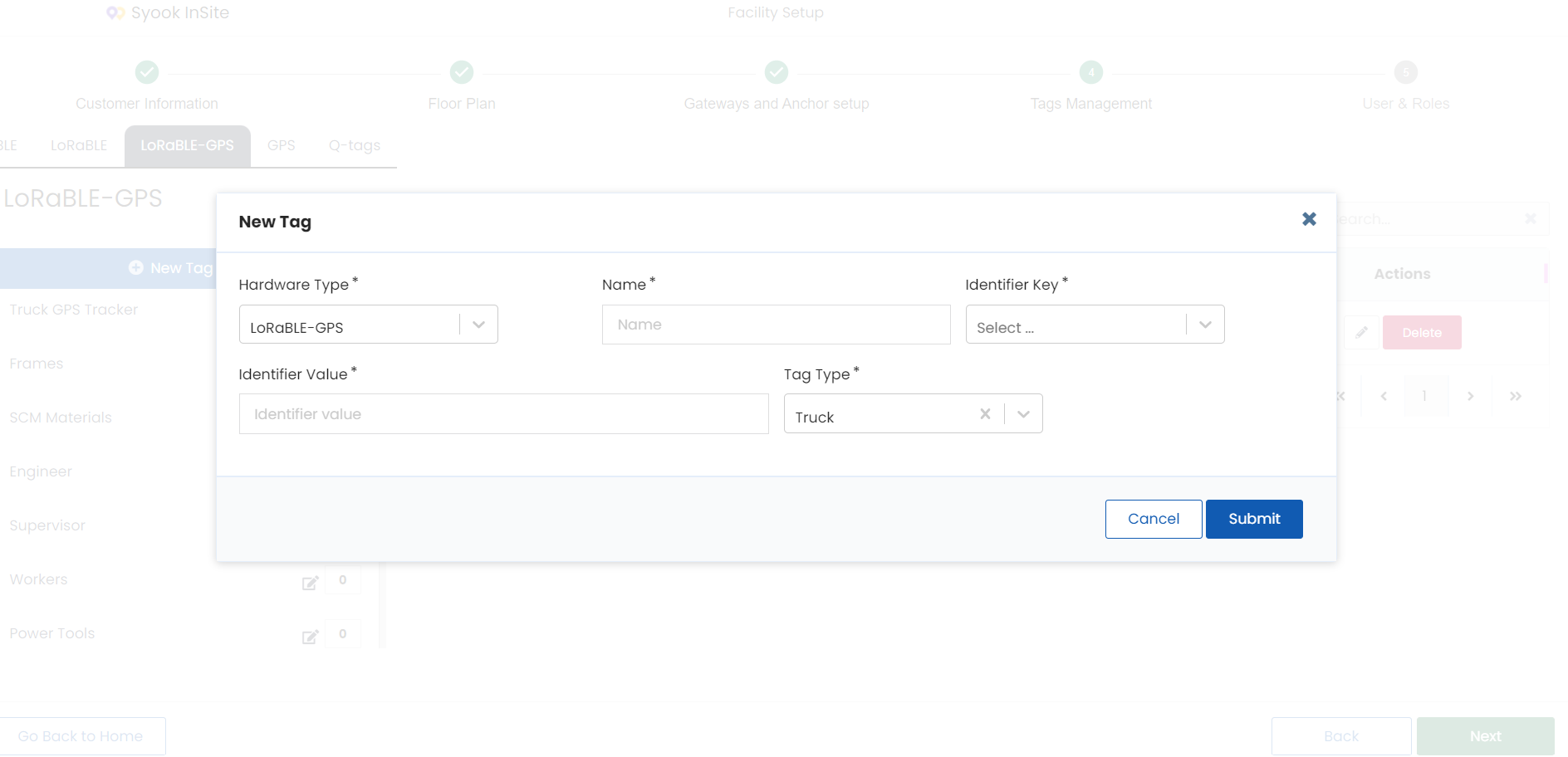
- Hardware type is selected as LoRaBLE-GPS by default.
- Enter the name
- Select the Identifier Key
- Enter the identifier value
- Select the required tag type
- Click on the Submit button.
The following identifier keys are available.
Macid
DevEUI
Serialnumber
Majorminor
Deviceid
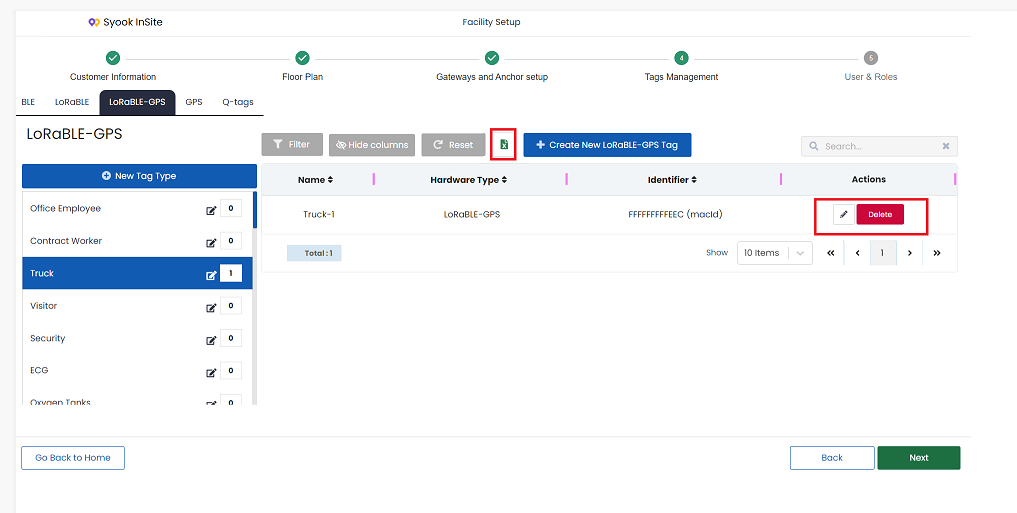
- Edit and Delete icons are available
- Tag details can be downloaded in an excel sheet by clicking on the excel icon as highlighted above
GPS
- If GPS Add-on is enabled, this tab will be available
- Click on the GPS tab as shown below
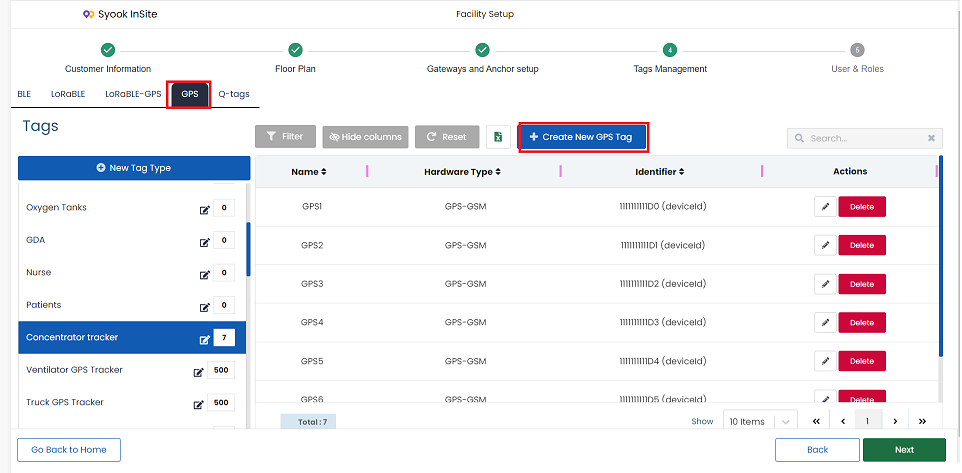
- Click on the + Create New GPS Tag as shown above.
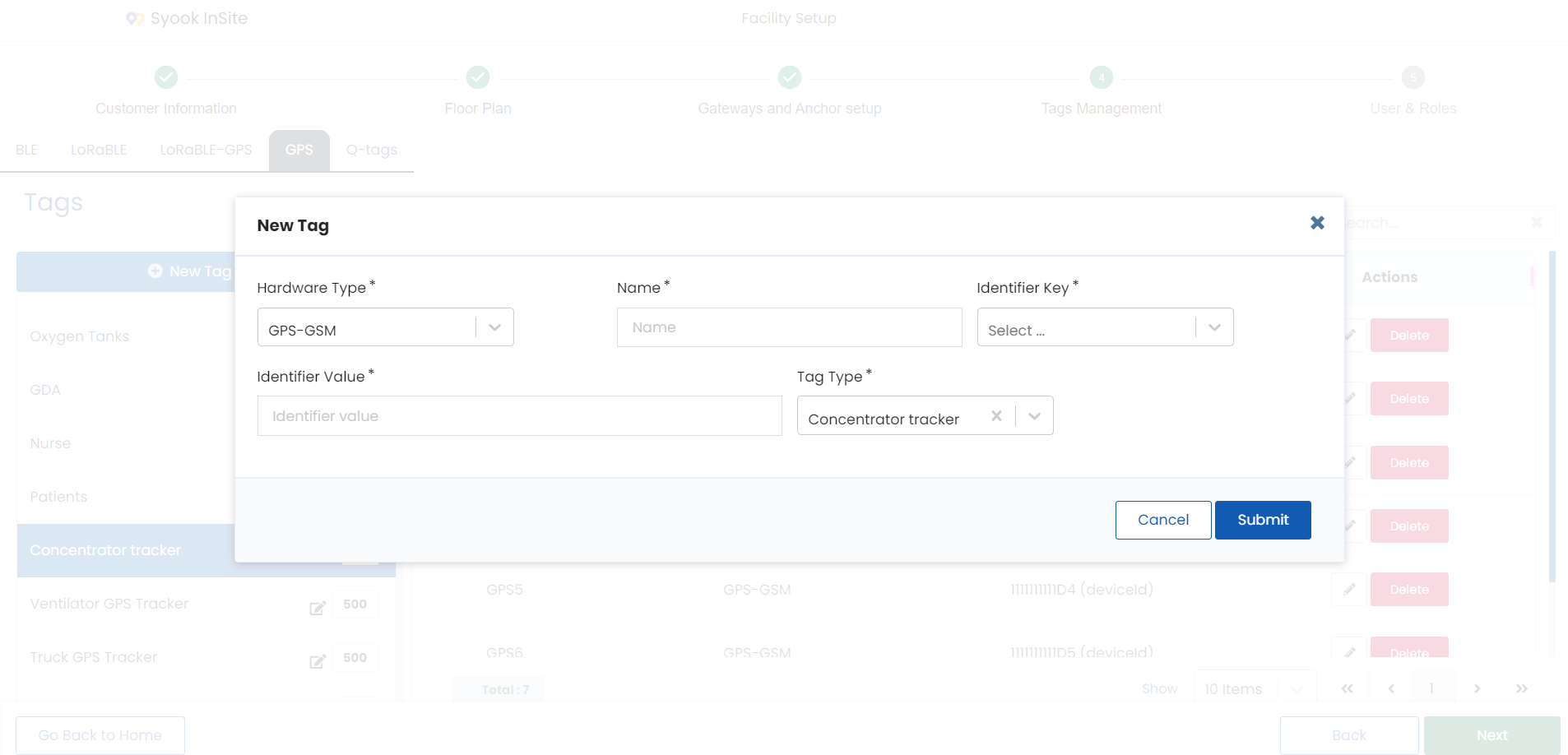
- The hardware type has 2 values
- GPS - GSM by default
- LoRaGPS
- Enter the name of the tag
- Select the identifier key
- Enter the identifier value
- Select the Tag Type
- Click on the Submit button.
The following identifier keys are available.
Macid
DevEUI
Serialnumber
Majorminor
Deviceid
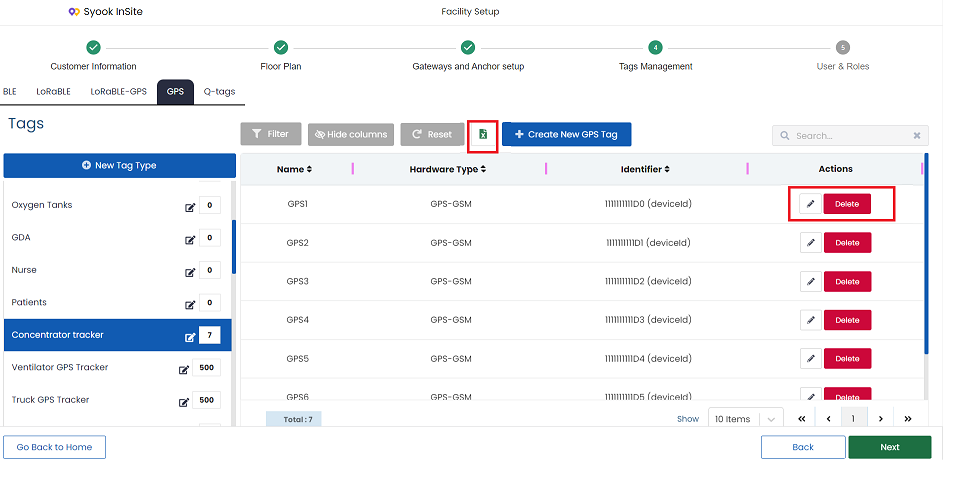
- Edit and Delete icons are available
- Tag details can be downloaded in an excel sheet by clicking on the excel icon as highlighted above
Q-Tags
- Click on the Q-Tags tab as shown below
- Click on the + Create New Q-Tag as shown above.
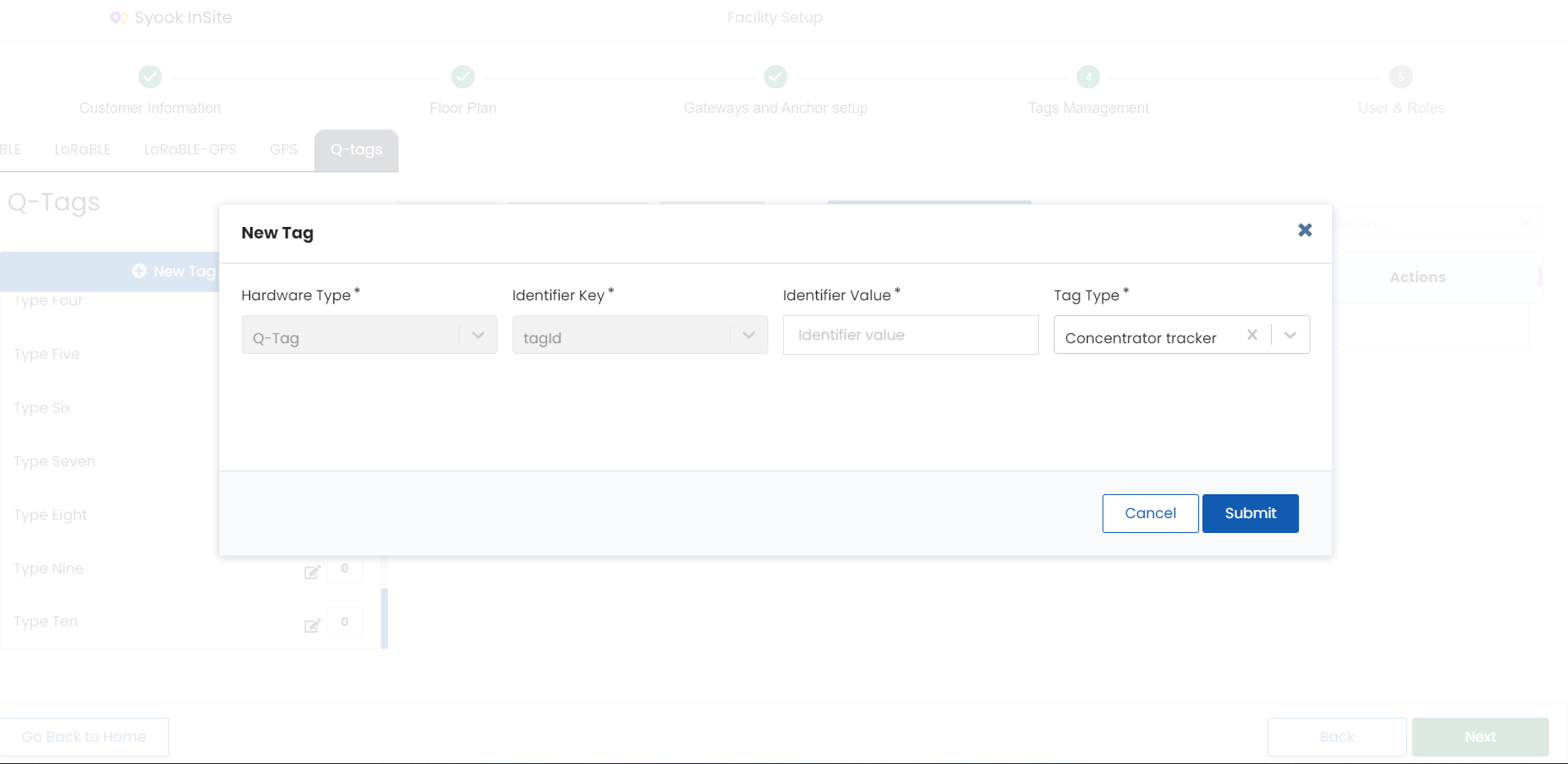
- The hardware type is selected as Q-Tag by default.
- The identifier key is selected as tagid by default.
- Enter the identifier value
- Select the Tag Type
- Click on the Submit button.
- Edit and Delete icons are available
- Tag details can be downloaded in an excel sheet by clicking on the excel icon as highlighted above