
- Click on the Entity Group Type as shown below.
- Entity Group Type name depends on the module name. Eg: People Management Module -> People Group, Truck In Truck Out module -> Truck Group
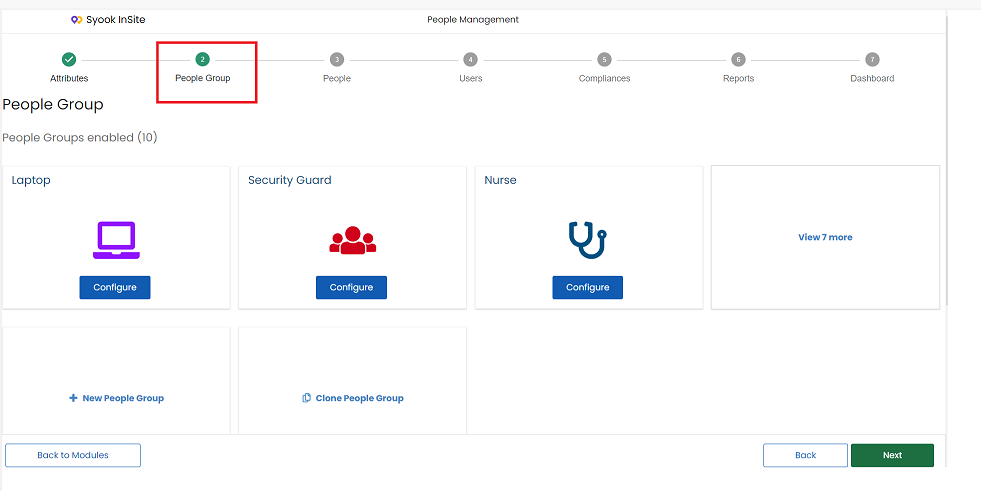
- Click on the New Entity Group button as shown below
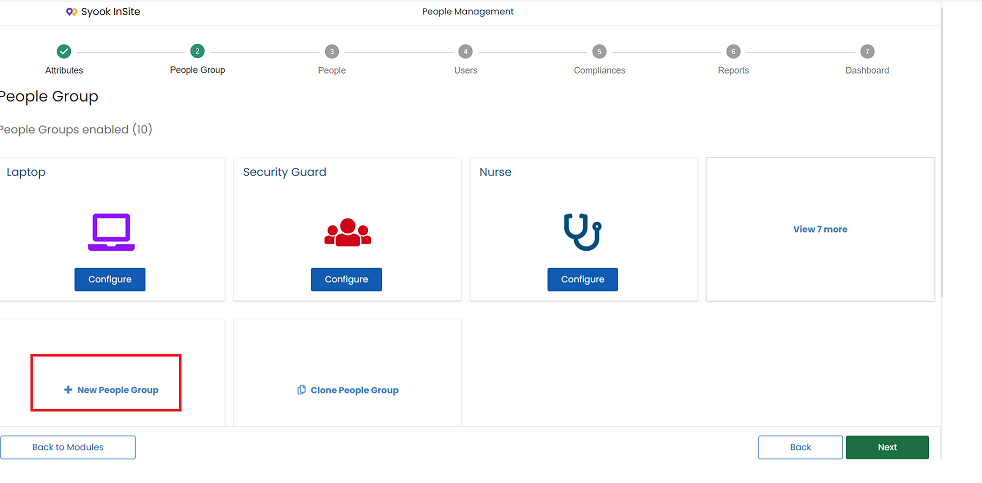
Clicking on the New Entity Group shows the below screen
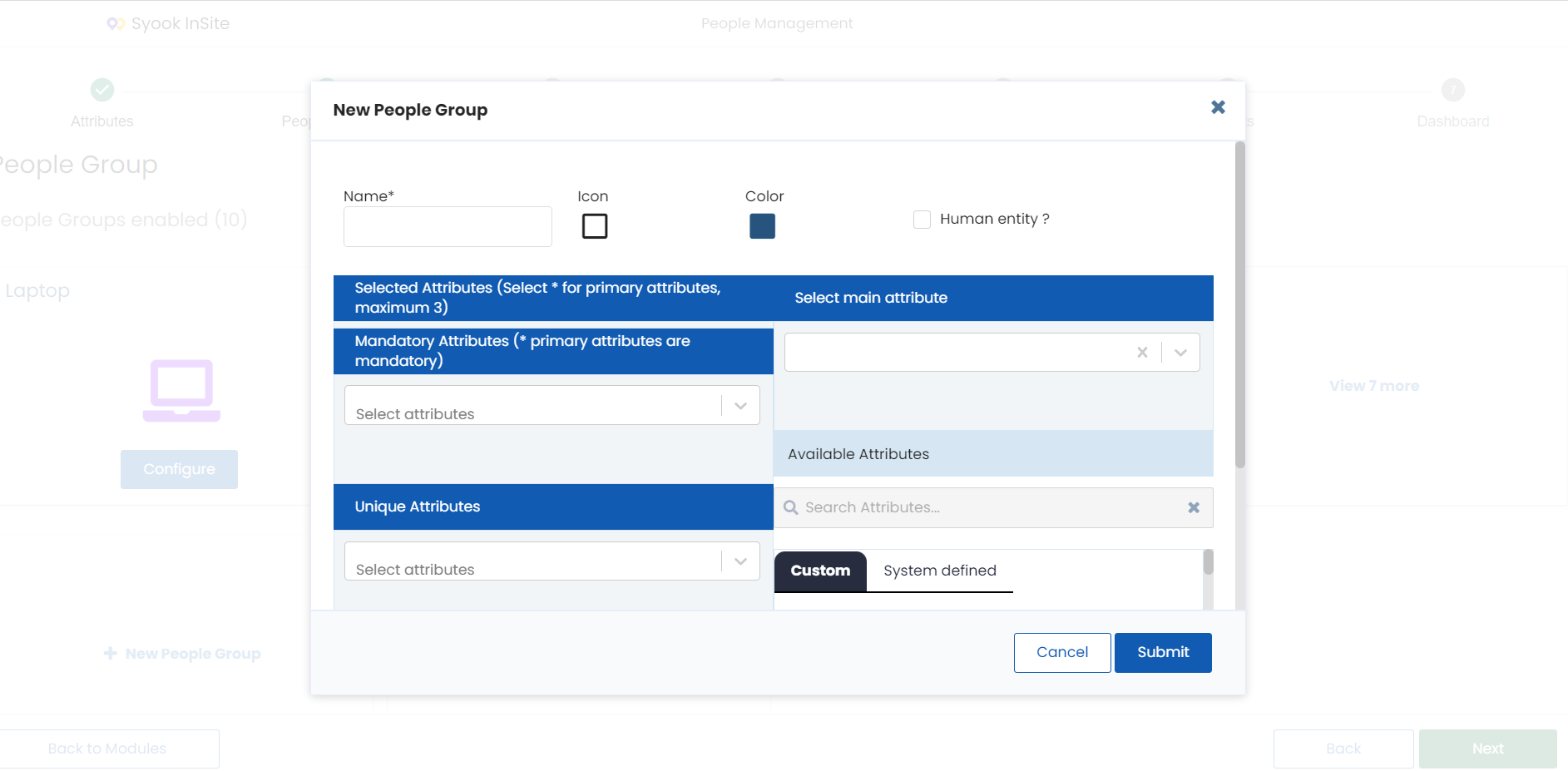
- Enter the name
- Select the icon
- Select the color
- Select the Human asset checkbox, If the entity to be tracked is a human like Employees, visitors etc
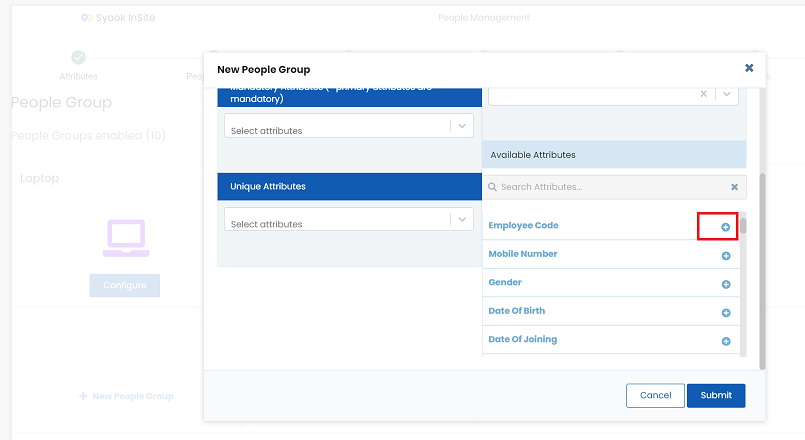
Select the required attributes by clicking on the + icon as shown above
Mandatory Attributes
- Primary attributes can be selected by clicking on the star icon. A maximum of 2 primary attributes can be selected.
- All the primary attributes are made mandatory automatically. By removing the mandatory attributes from the list, the primary attribute selection(star selection)will be removed automatically from the selected attributes.
Unique Attribute
- The attribute which is selected as a Unique attribute, indicates that only one entity can have a value. Same value cannot be given for another entity.
- For example, if truck number is selected as a Unique attribute, which indicates that only one truck can have some truck number. Same truck number cannot be given to another truck.
Main Attribute
- The attribute which is shown as the main attribute is mandatory by default. Also the main attribute will be shown in the dashboard to indicate the entity. If Truck number is selected as the main attribute, then the truck number will be shown in the dashboard, to see the trucks.
- After the required attributes are selected, click on Submit, to create the new entity group.
- Once the entity group is created, it will be available in the Enabled entity groups.
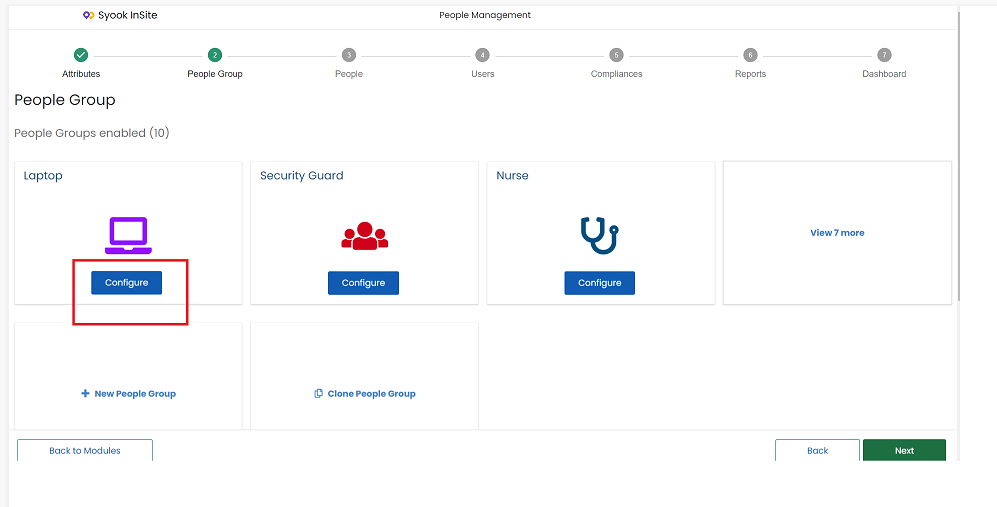
- Click on the Configure button to modify the Entity Group details.
- The users can add / remove the required attributes and do the necessary modifications and click on Submit.
- Option to disable the Entity Group is available.
- Once the Entity Group is disabled, entities cannot be created for that entity group.
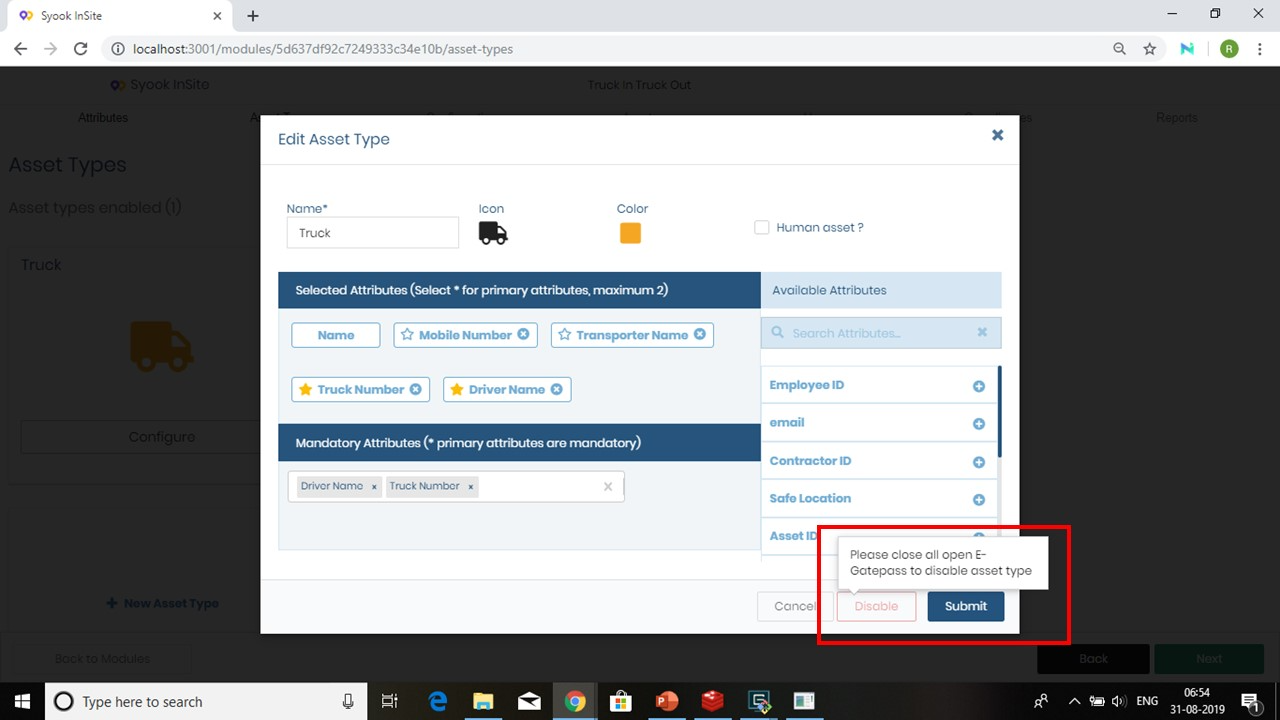
- When open e-gate passes are available for the entity group, then the Disable button will be disabled as shown above.
- Clicking on the Next button takes to the Entities Step.
Clone Entity Group
- When there are similar entity groups with different names and same attributes, clone asset type can be used
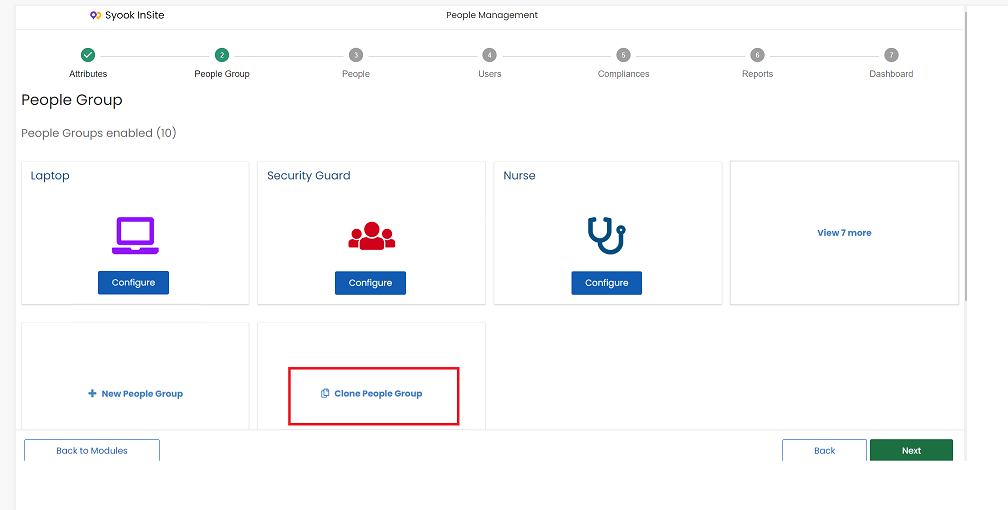
- Click on the Clone Entity Group as shown below.
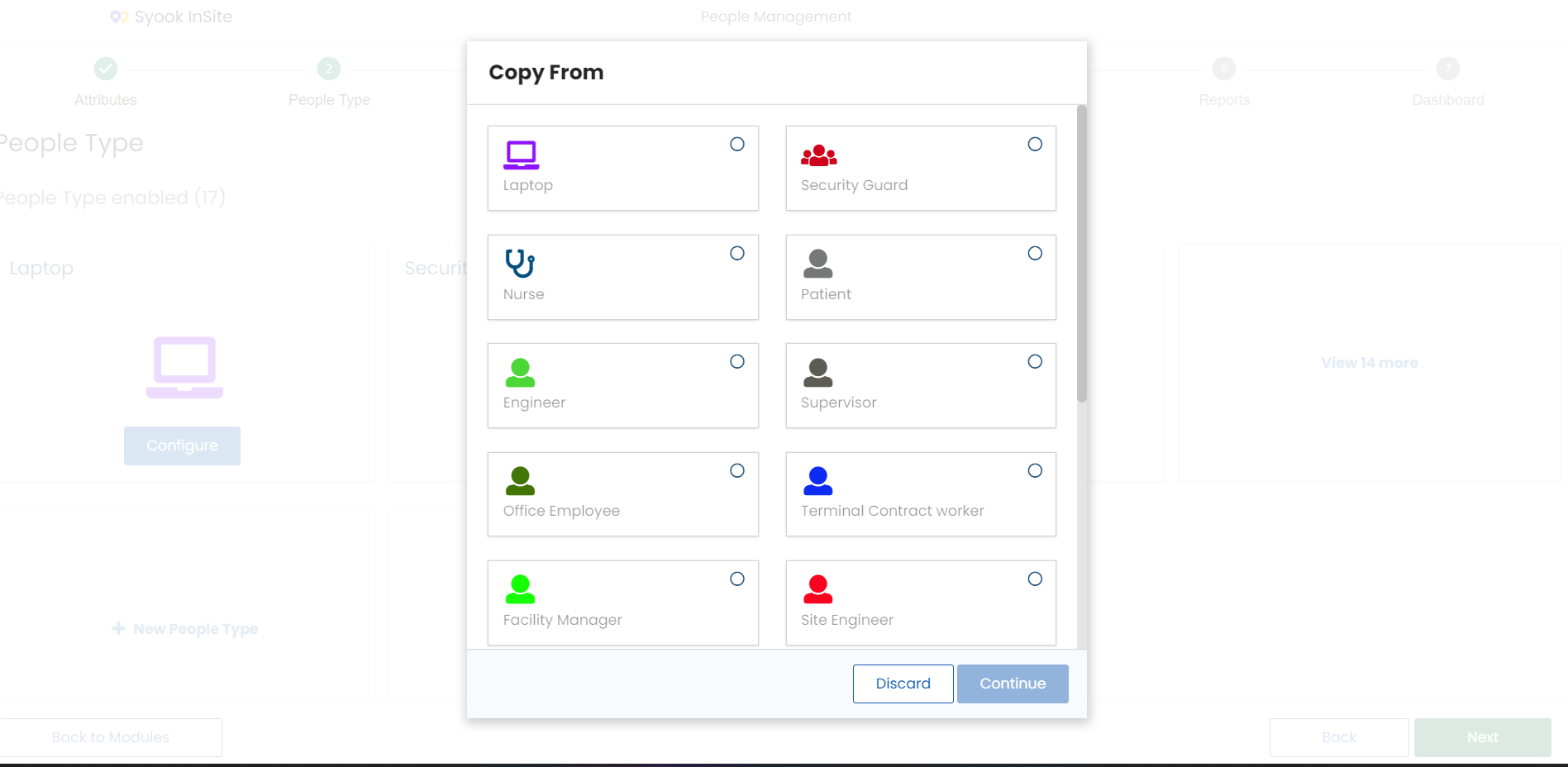
Select the required entity group to clone and click on the Continue button as shown below.
 The below screen will be shown
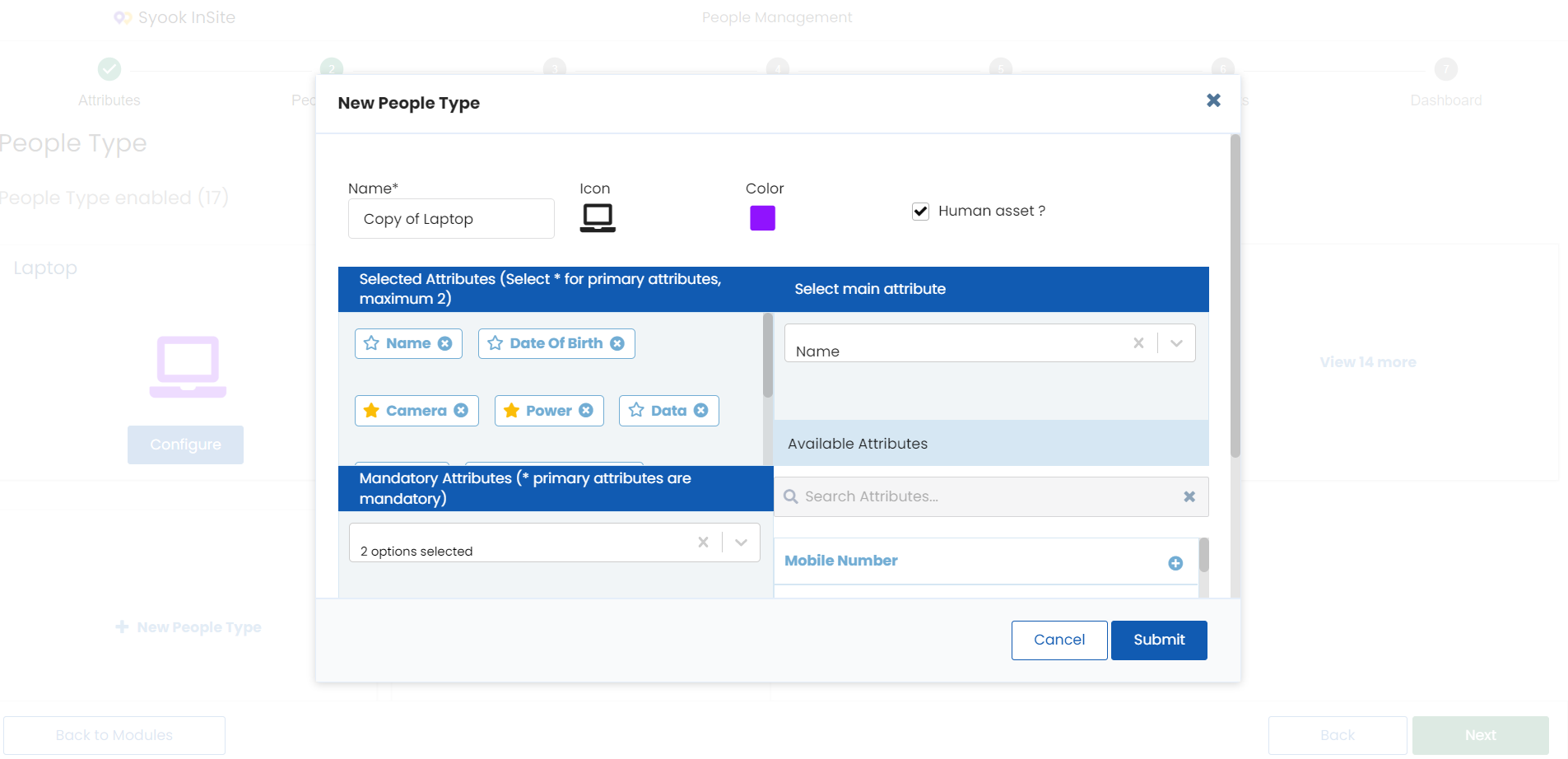
- All the attributes, icon will be the same for the cloned entity group. Change the required name, attributes and icon if required
- Click on the Submit button
Click on the Next button to go the Entities page