
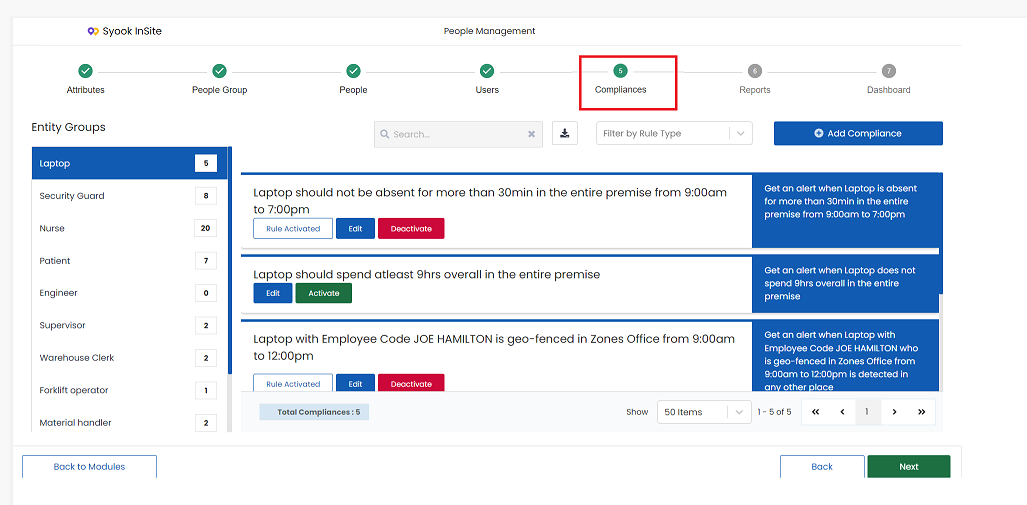
- Compliances are where rules can be added for the enabled entity groups.
- Whenever an activated compliance is not followed, alerts will be sent to the assigned users.
- The enabled entity groups in step 2 will be shown here and an option to Add compliance for each entity group is available.
- By clicking on each Entity group, compliances available for that Entity Group are shown.
- Click on the Compliances as shown below.
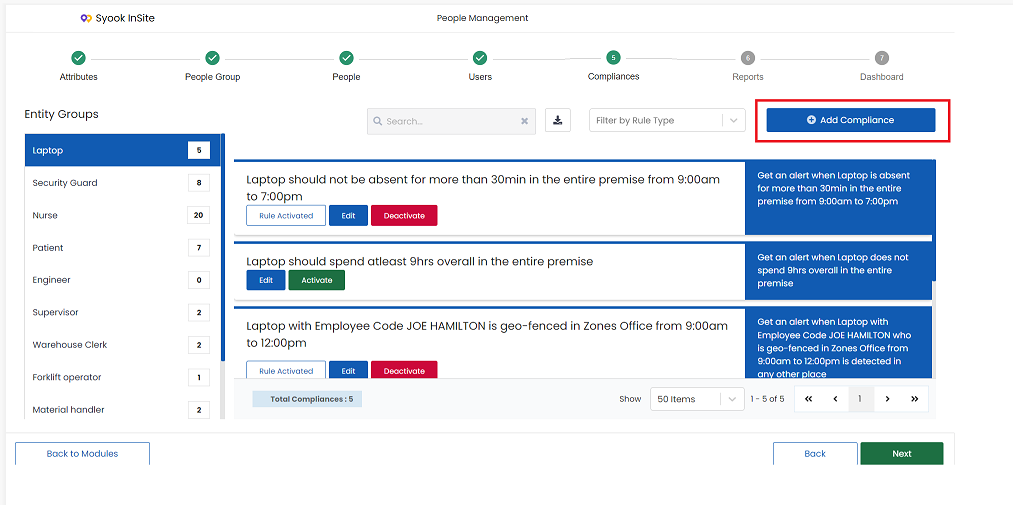
- Click on the +Add Compliance as shown below.
- Clicking on +Add Compliance, shows the below screen.
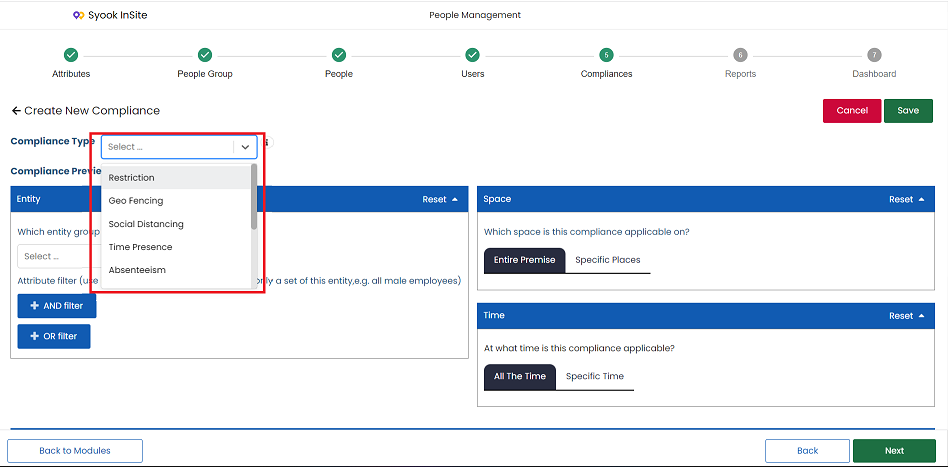
Select the required compliance type. The following compliances are available.
- Restriction
- Geo-Fencing
- Social Distancing
- Time Presence
- Absenteeism
- Number of Assets
- Allowance
- Trip Count
- Trip Checkpoint TAT
- Immobility
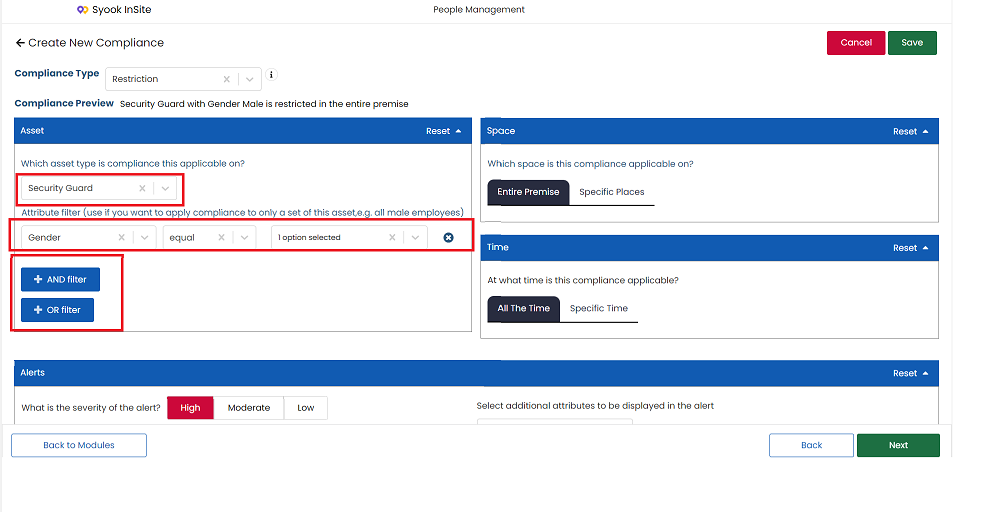
- Select the Entity Group and select the attribute for which the rules need to be set.
Entity Attributes Specification
For example: Name equal to xxxx.
If required, we can add multiple filters using AND / OR conditions to set for multiple attributes.
Compliance Definition
Compliance definition is available for the below mentioned compliance types. Refer screen below.
Social distancing
Should Maintain Social Distancing
Time Presence
Should not spend more than
Should Spend Atleast
Absenteeism
Should not be absent for more than
Number of Assets
Should have minimum number of assets
Should not have assets more than
Trip Count
Should Complete Trips atleast
Allowance
Asset Allowance
7. Trip Checkpoint TAT
Should reach within
Trip template, Start Checkpoint, End Checkpoint, time duration need to be selected.
8. Immobility
Should not be stationary for more than
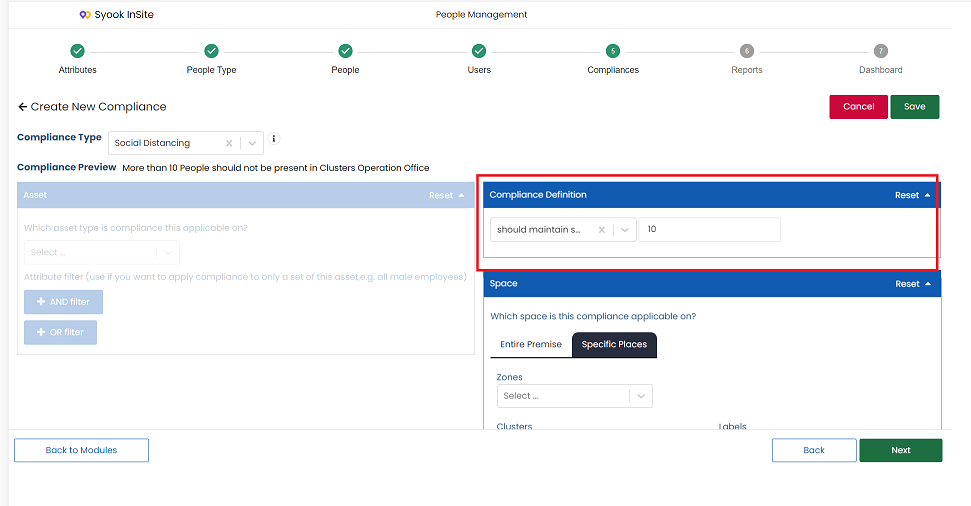
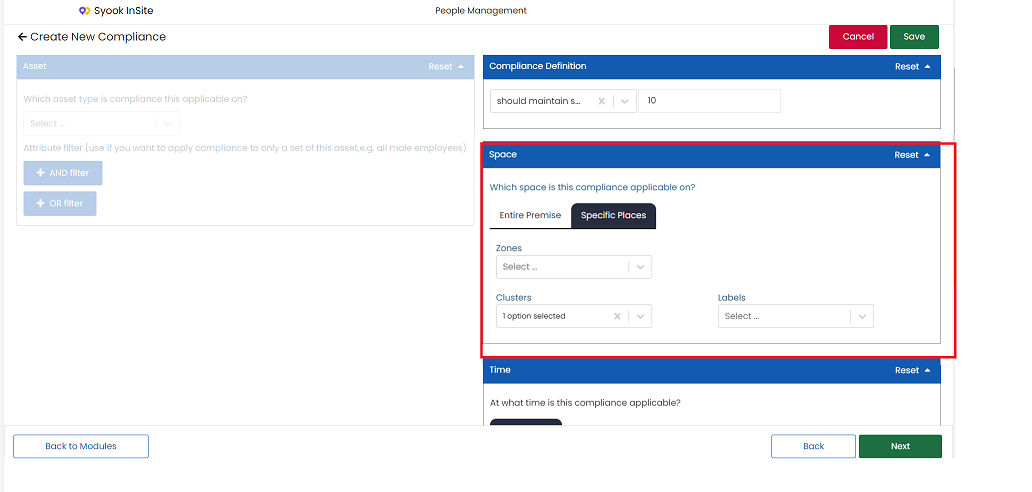
Space
- This helps to set if compliance is set for the entire premise or for a particular area in the premise.
- Either Entire Premise or Specific Place needs to be selected.
- If Entire premise is selected, then the compliance will be set up for the entire premise.
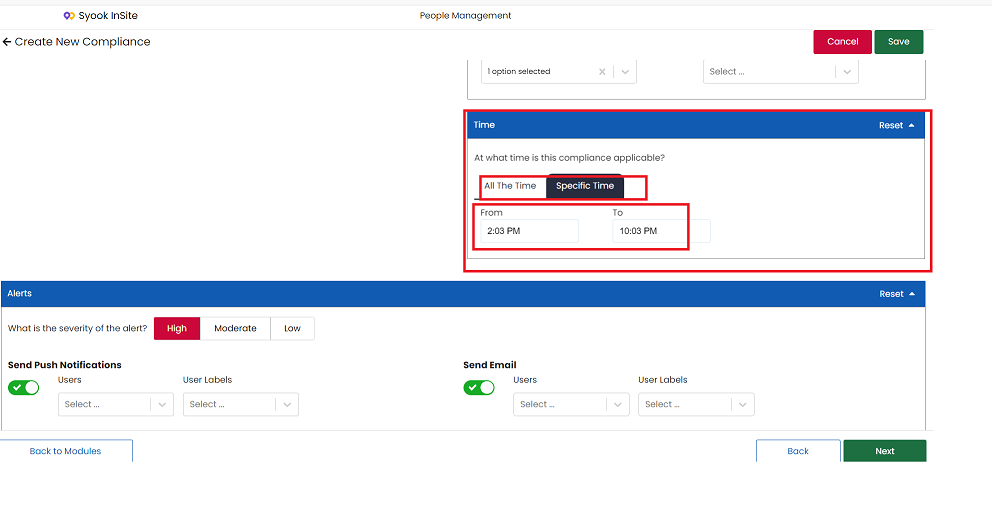
Time
- This is to set the time for compliance.
- Either All the Time / Specific Time can be selected.
- If Specific time is selected, then From and To should be updated.
Alerts
- This helps to set the severity of the compliance.
- It allows us to assign the users who should receive notification when the compliance is not followed.
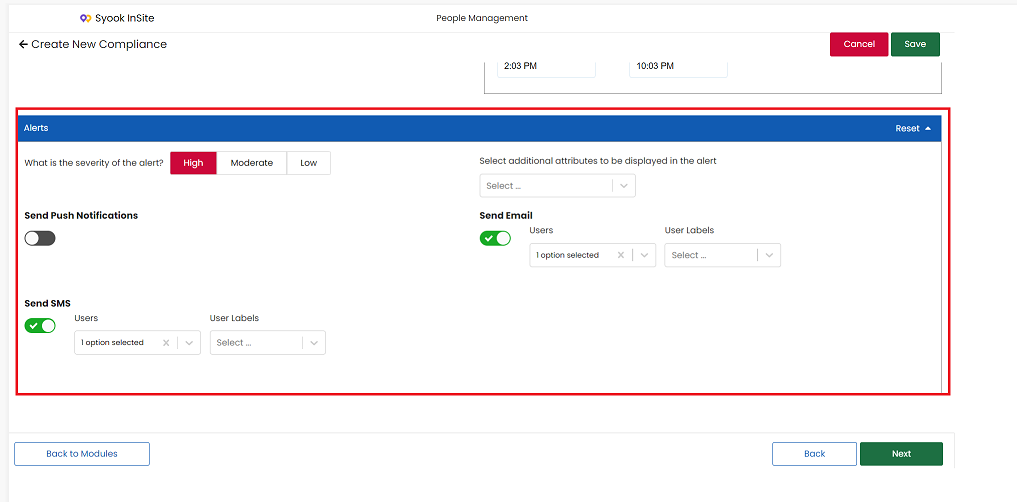
- If additional attributes need to be shown in the alerts, then they can be selected.
- Additional attributes selection will be available for all compliance types except Social distancing and number of assets.
- Users can be assigned for SMS, email and Push notifications.
Compliance Preview
- Preview is helpful to understand how the compliance works
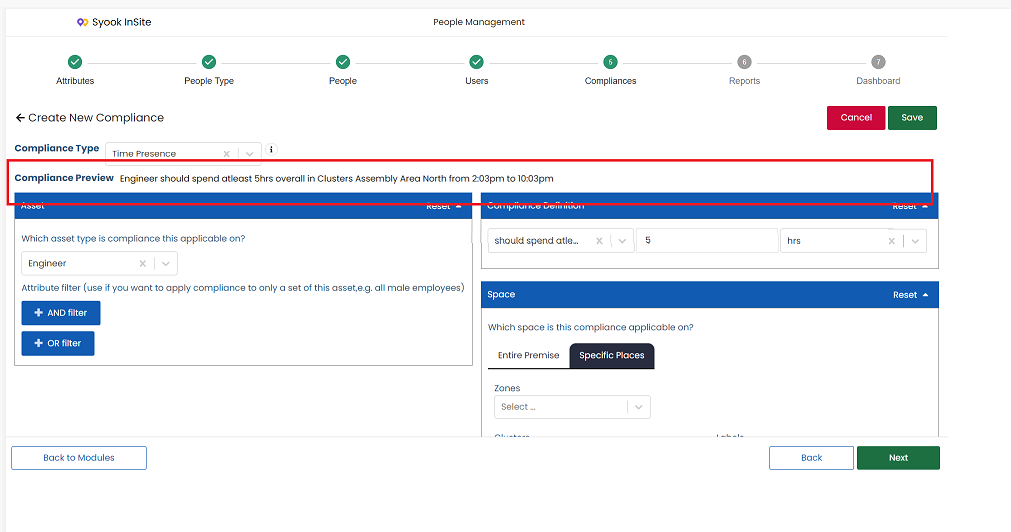
- Clicking on the Save button, saves the compliance.
- Clicking on Next button, takes to the Reports