
Widgets
- Widgets are the metrics. Widgets created are considered as basic reports.
- Click on the Reports as shown below
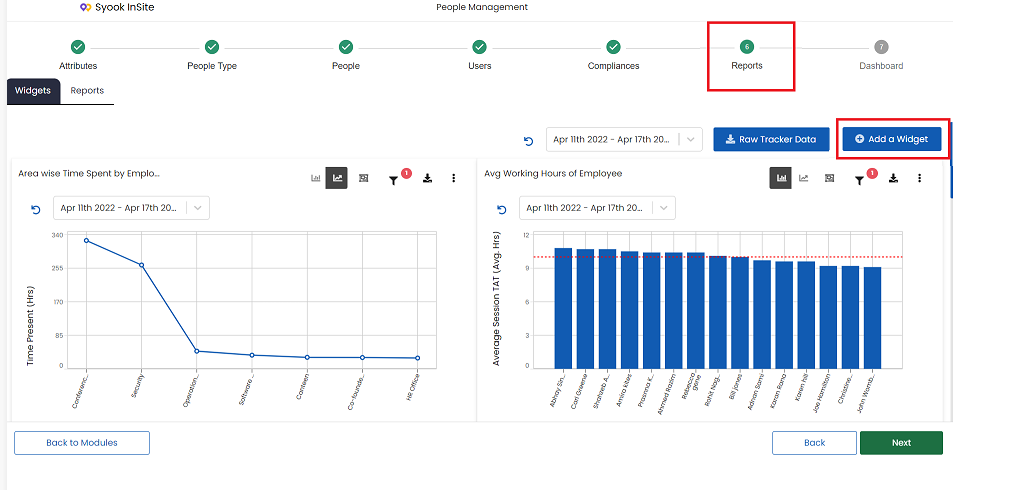
Click on the + Add Widget as shown above.
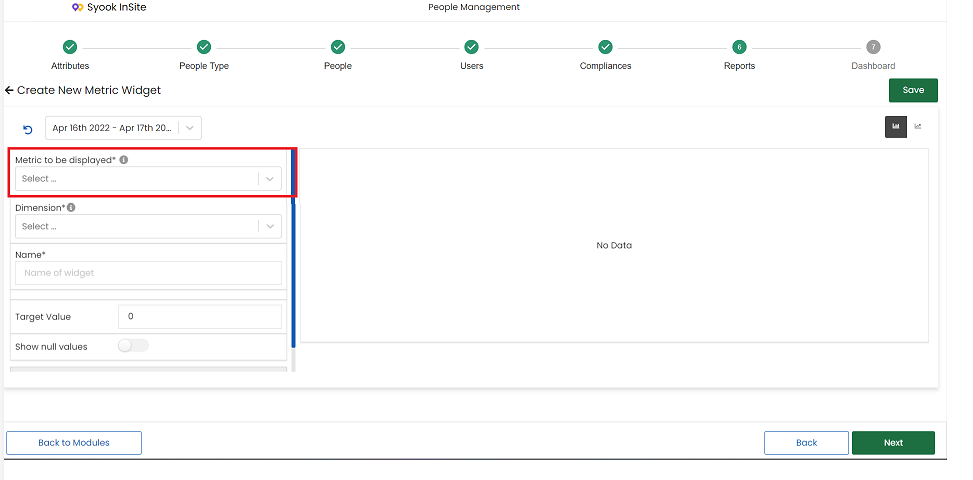
Different Types of Metrics are as follows
- Asset Metrics
- Trip TAT
- Rule Metrics
- Social Distancing Score - DROR add-on to be enabled for this.
Asset Metrics
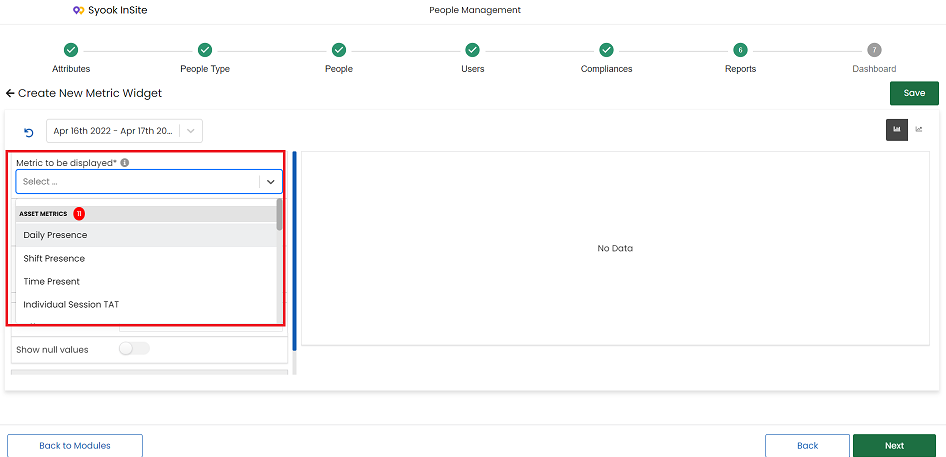
The following asset metrics are available.
Daily Presence
Shift Presence
Time Present
Individual Session TAT
Average session TAT
Total Session TAT
Session Count
Time In
Time Out
Trip Count
In Transit Time
- For Session calculation, day starts from 12 AM and ends at 11:59 PM.
- When an asset has Logged in and Logged out, then it is calculated as a single session.
Sl.No | Metrics | Description |
| 1 | Daily Presence | If an asset is logged in the facility on a given day, then the asset is said to be present on that day. Suppose if asset logs in the morning and logs out in the evening, then daily presence is calculated as 1 time. If the asset logs in today and logs out tomorrow, then daily presence is calculated as 2 times. |
| 2 | Shift Presence | Shows the count of shift present by the selected dimension in the selected shift template |
| 3 | Time Present | Time present is the time the asset is detected by the readers. |
| 4 | Individual Session TAT | It shows the TAT for each individual completed session for the given time period. |
| 5 | Average Session TAT | It shows the average TAT of the completed sessions for the given time period. |
| 6 | Total Session TAT | It shows the total TAT for the completed sessions for the given time period |
| 7 | Session Count | It shows the total sessions count for the given time period |
| 8 | Time In | It shows the average Time In of the asset for the given time period. |
| 9 | Time Out | It shows the average Time Out of the asset for the given time period. |
| 10 | Trip Count | It shows the number of Trips based on the trip template - start point and end point for the given time period. If the mid points are added in the trip template, then the same path has to be followed. If the path is not followed, then it will not be taken for trip count calculation. |
| 11 | In Transit Time | In Transit time is the time taken to travel from one point to another. This metric sums up the time taken in-transit between all the checkpoints in a trip eg If there are 5 checkpoints in a trip then time taken to travel between checkpoint 1 and 2, checkpoint 2 and 3 and so on will be calculated and summed to give the total in-transit time for a trip |
Trip TAT
This is calculated based on the trip template selected.
Individual Trip TAT
Average Trip TAT
Total Trip TAT
Sl.No | Metrics | Description |
| 1 | Individual Trip TAT | For the selected trip template, based on the selection of First / Last detection at start and end points, TAT is calculated for each asset for the completed trips for the selected time period |
| 2 | Average Trip TAT | For the selected trip template, based on the selection of First / Last detection at start and end points, average TAT is calculated for each asset for the completed trips for the selected time period |
| 3 | Total Trip TAT | For the selected trip template, based on the selection of First / Last detection at start and end points, total TAT is calculated for each asset for the completed trips for the selected time period |
Rule Metrics
The following metrics are available.
1. Rule Break Count
Social Distancing
The following metrics are available
1. Social Distancing Score
It is used to see the count of how many times the rule is not followed.
Metrics / Widget Creation
- Select the metrics to be displayed
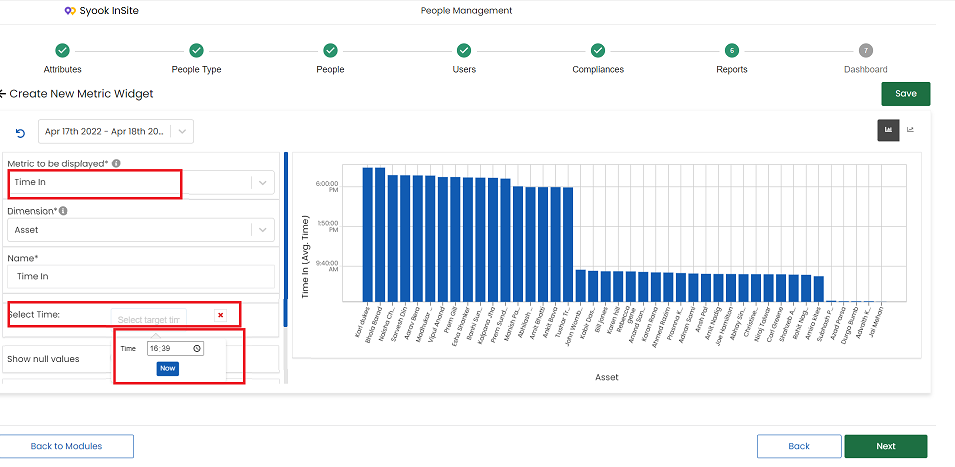
- If Time In or Time Out is selected, then it shows an option to select target time as shown below
- If Trip count or In transit time is selected, option to select the Trip Template is available.
- Select the dimension
- Enter the name of the widget
- Select the required value in Group By drop down
- Group By drop down values depends on the selected dimension and the selected metrics
- Select the required asset filters and if any attribute based filter is required, select the required attributes and its values and click on the Apply Filters.
- Click on the Save button.
All the widgets created here will be available in the Basic Reports.
Metrics Options
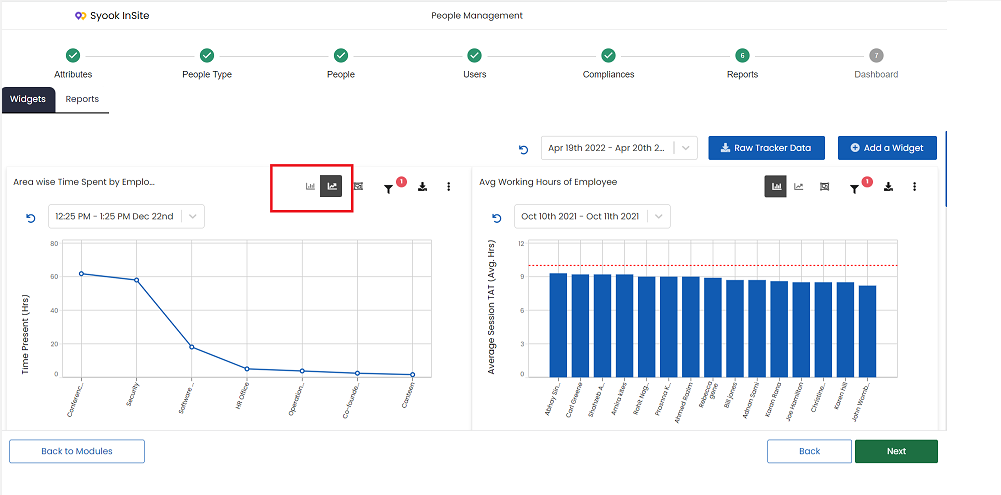
1. Chart Types
- Either Bar chart or line chart can be changed as per requirement
- Click on the required chart type and it will show the chart
2. Group By
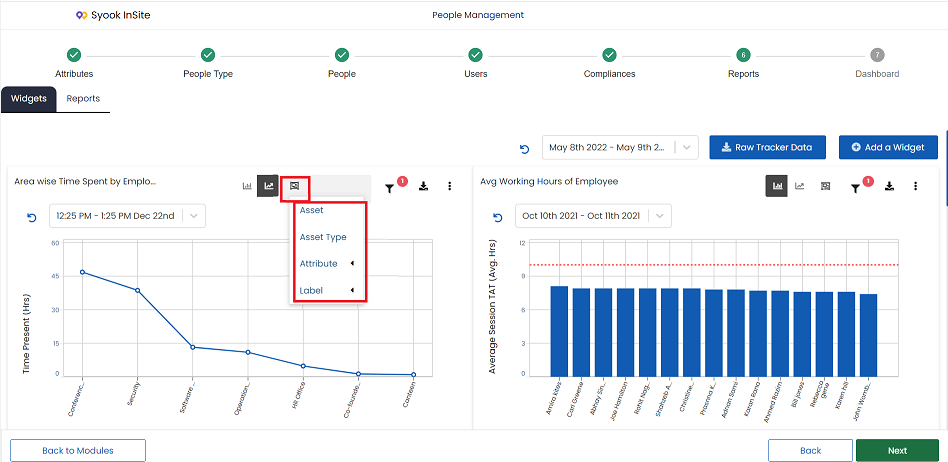 Group By has the following options.
1. Asset
2. Asset Type
3. Attribute
4. Label
3. Filter
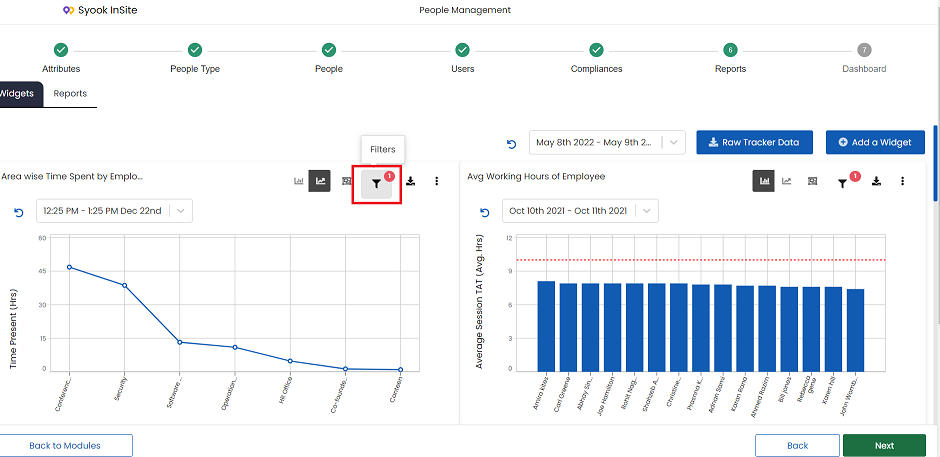
- Using the filter, the user can filter the required space and asset values
3. Download
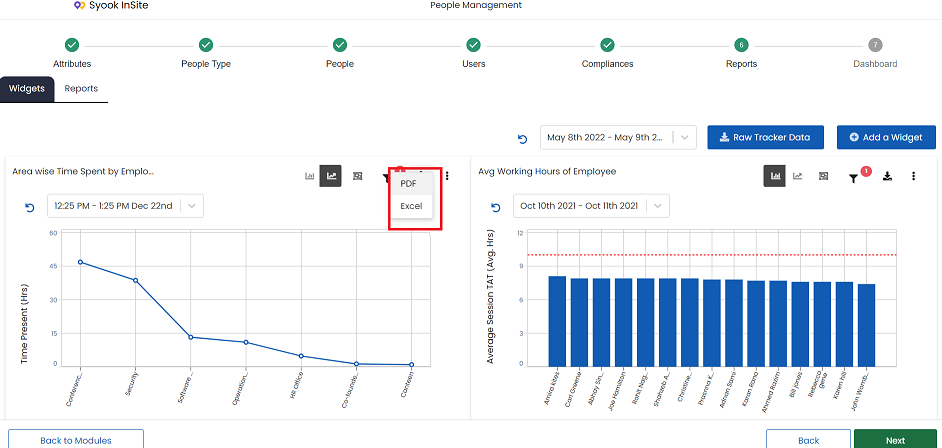
- The Graph can be downloaded in excel or PDF.
- In the Downloaded excel sheet, graph will not be shown.
4. Edit / Duplicate / Delete
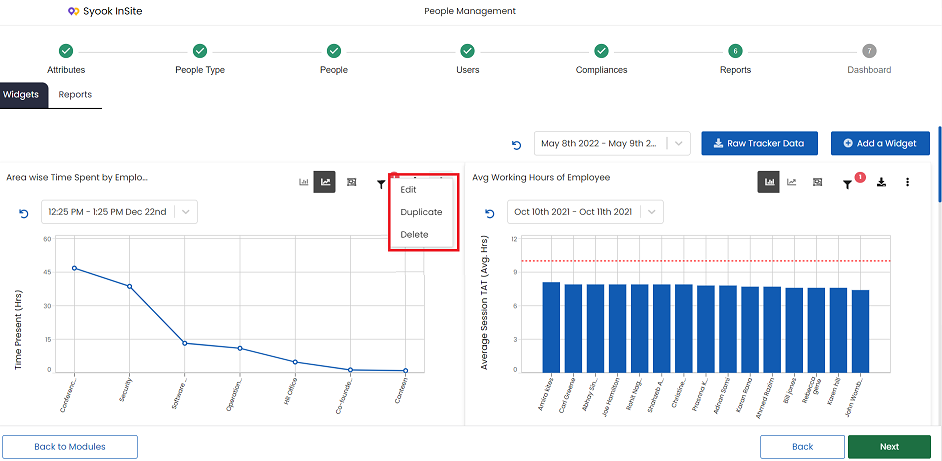
Clicking on the Edit, allows to edit the widget.
Clicking on the Duplicate, allows to create a duplicate widget
Clicking on the Delete, Deletes the Widget.
Raw Tracker Data
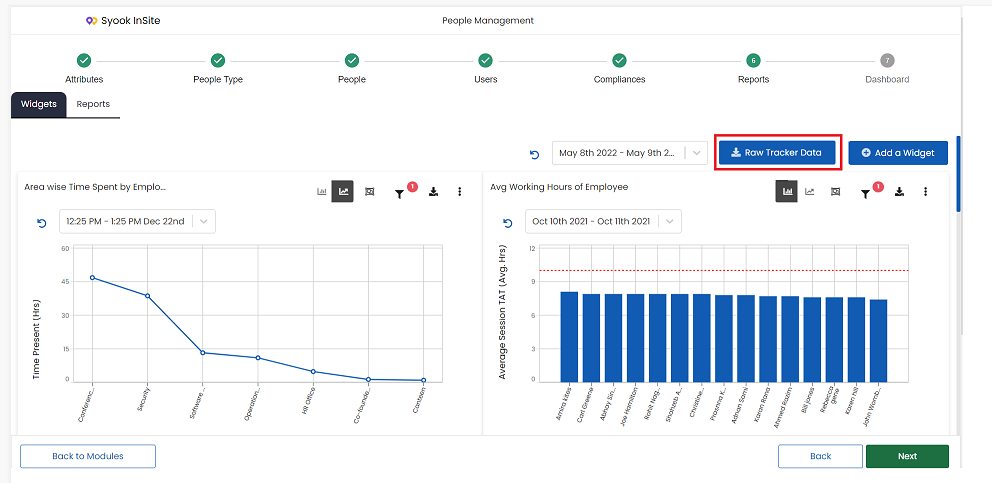 Clicking on the Raw Tracker Data shows the below screen.
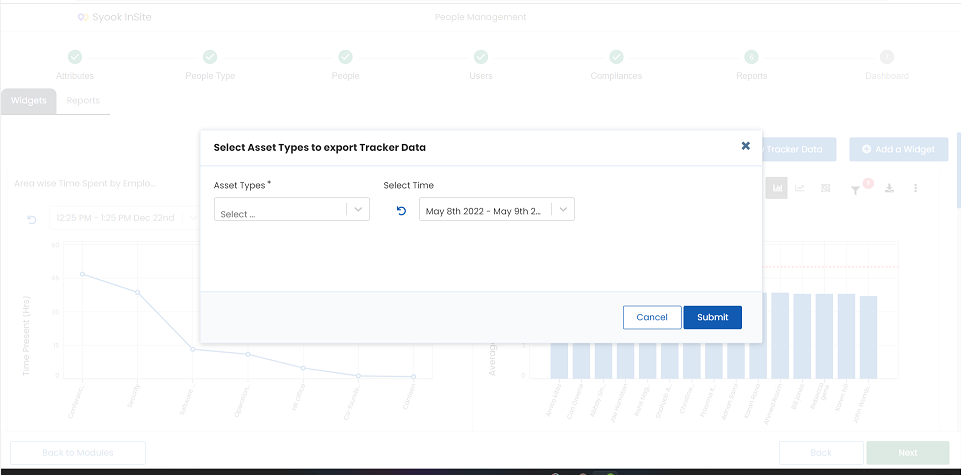
User can select the required Asset Type and the required date range and click on the Submit button to download the tracker data. The tracker data has the data for the assets for the time between login and logout for each minute.