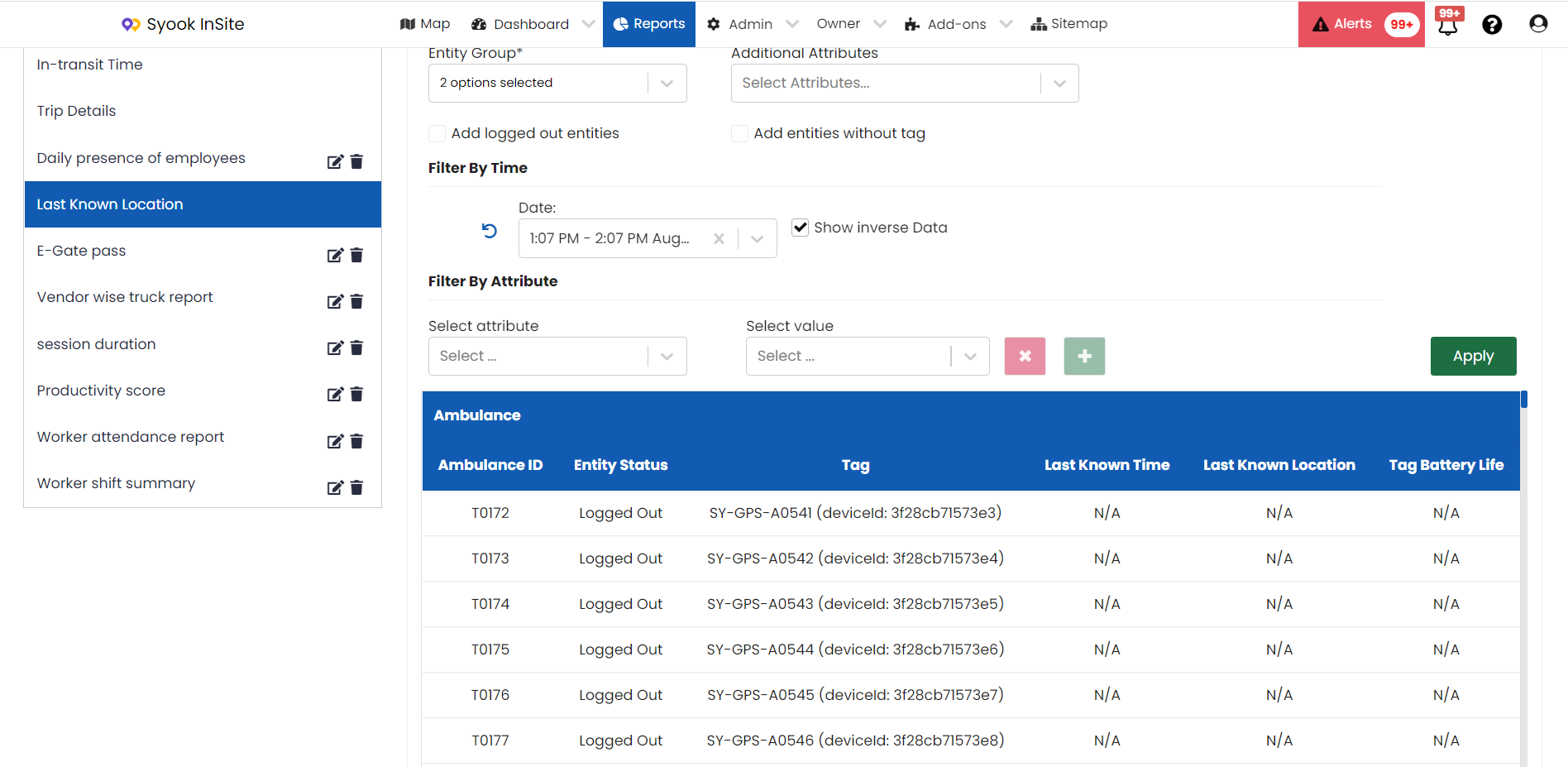
Last Known location report is used to know the last known location of an entity during their last login.
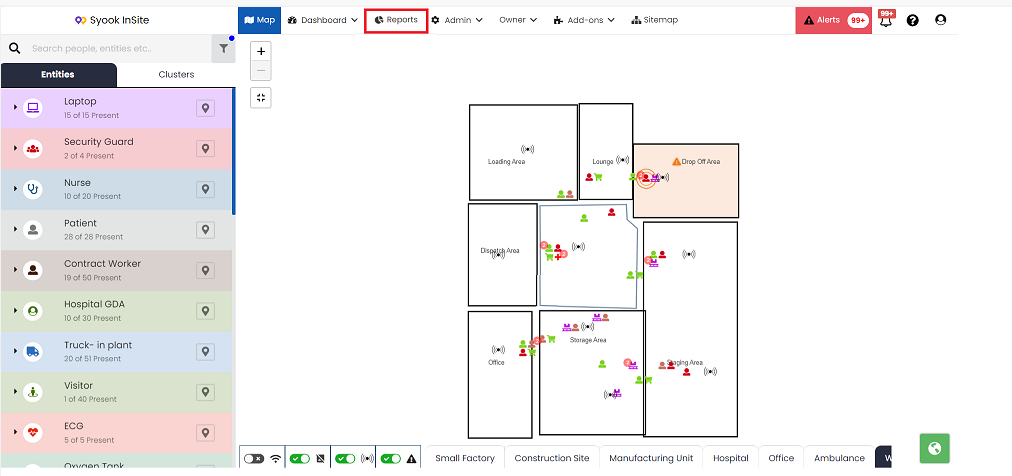
Click on the Reports as highlighted below.
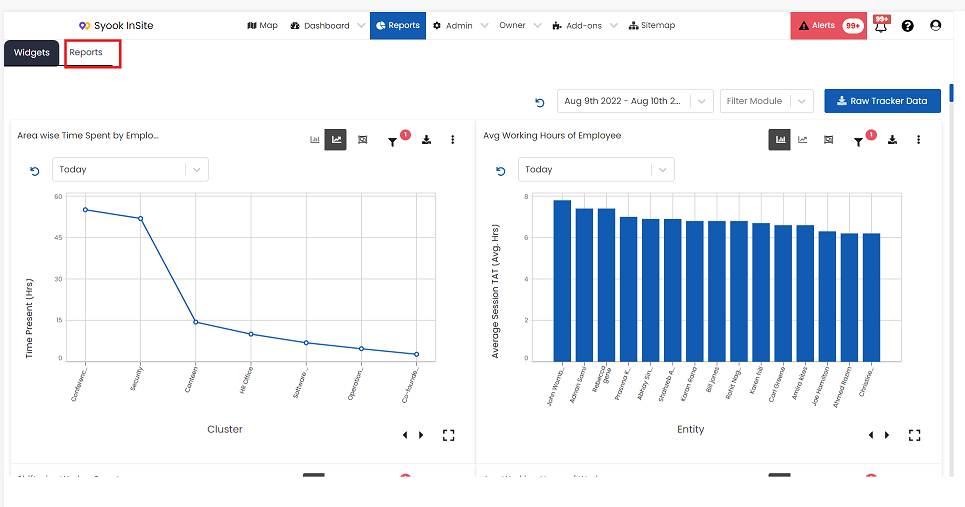
Click on the reports as shown below.
Click on the Advanced and click on the Last Known Location as shown below.
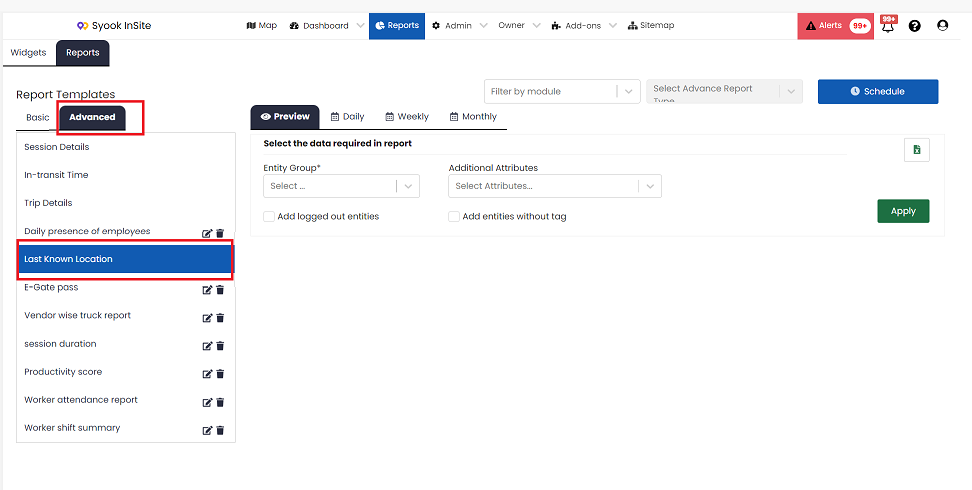
Select the required entity group from the drop down.
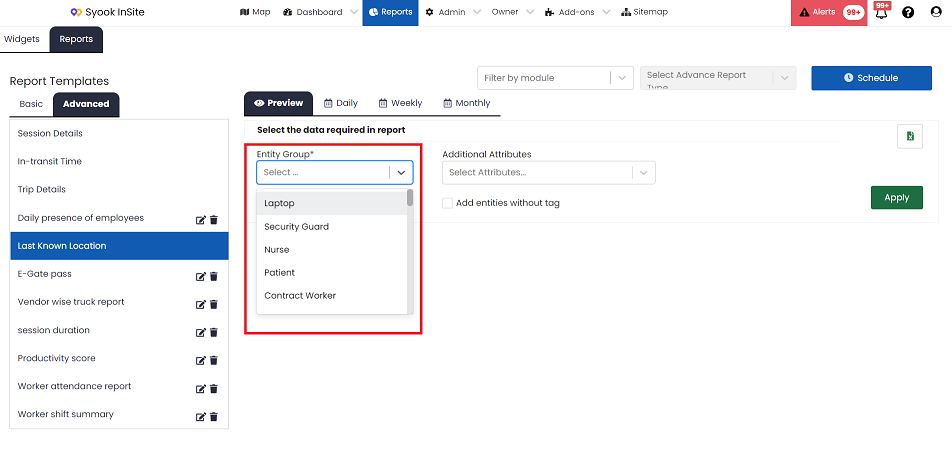
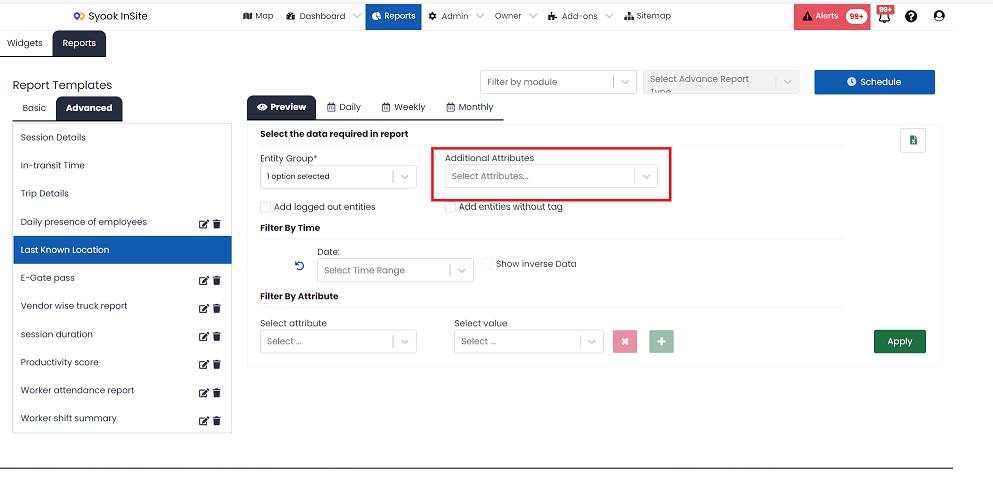
If any attribute values are needed in the report, select the required attributes from Additional attributes drop down as shown below.
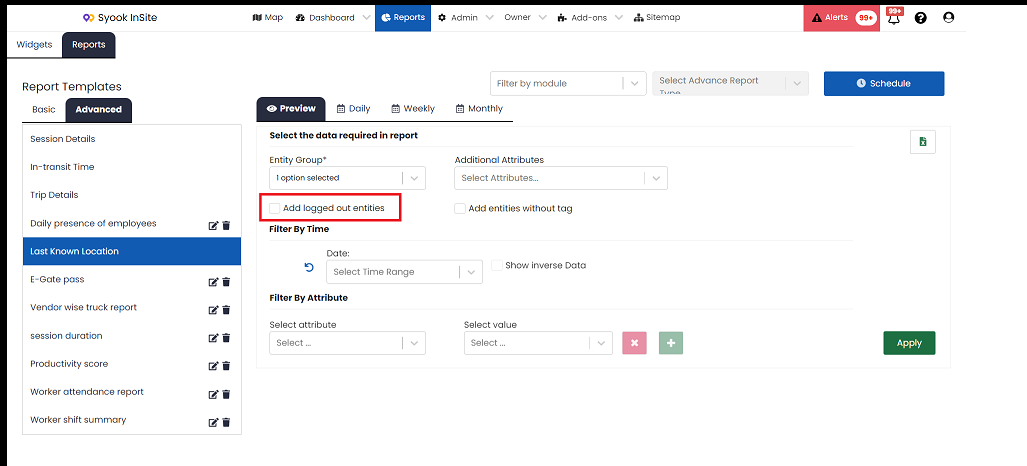
If logged out entities need to be shown in the report, select the Add Logged out entities as shown below. Date filter should not be selected to enable this. If Date filter is not selected, the report will be shown for today's date from midnight 12AM till the current time.
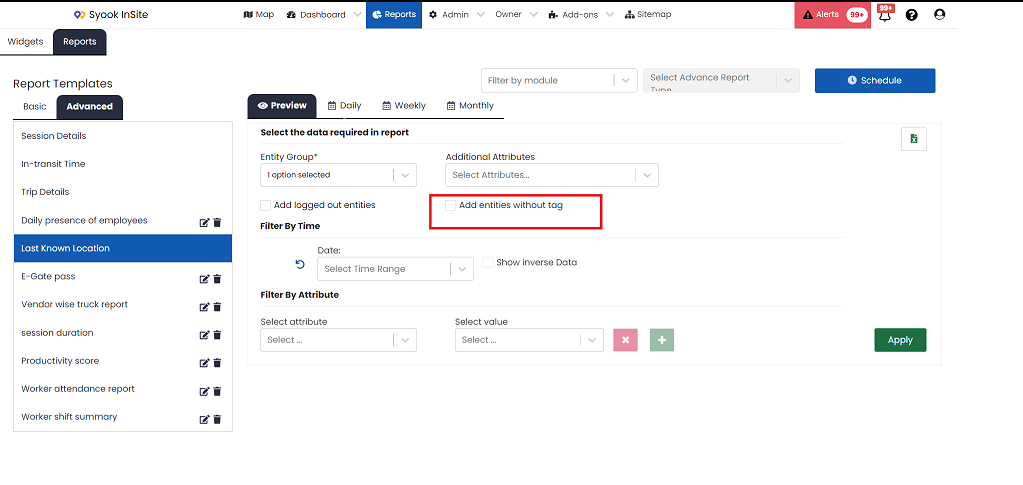
If entities without tag need to be shown in the report, select the Add Entities without Tag. Date filter should not be selected to enable this. If Date filter is not selected, the report will be shown for today's date from midnight 12AM till the current time.
Select the required date range as shown below. Click on the Apply button.
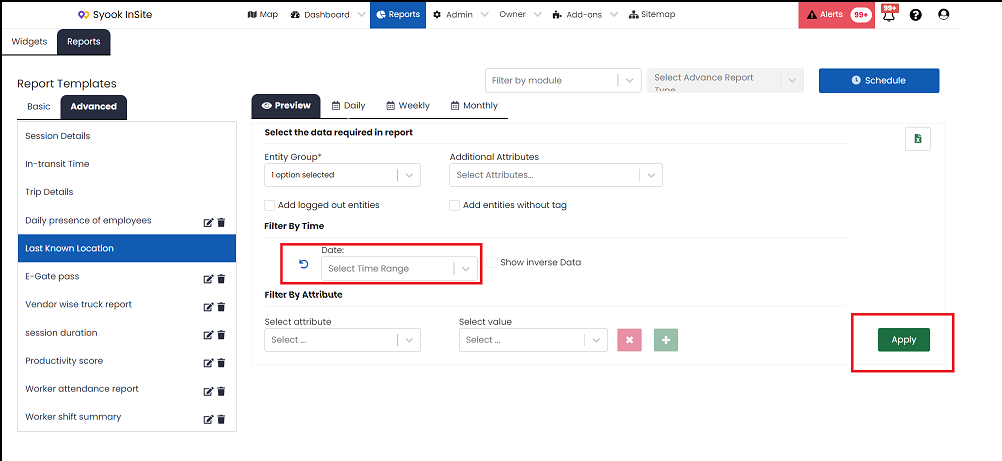
This report shows the entities who last known location is available.
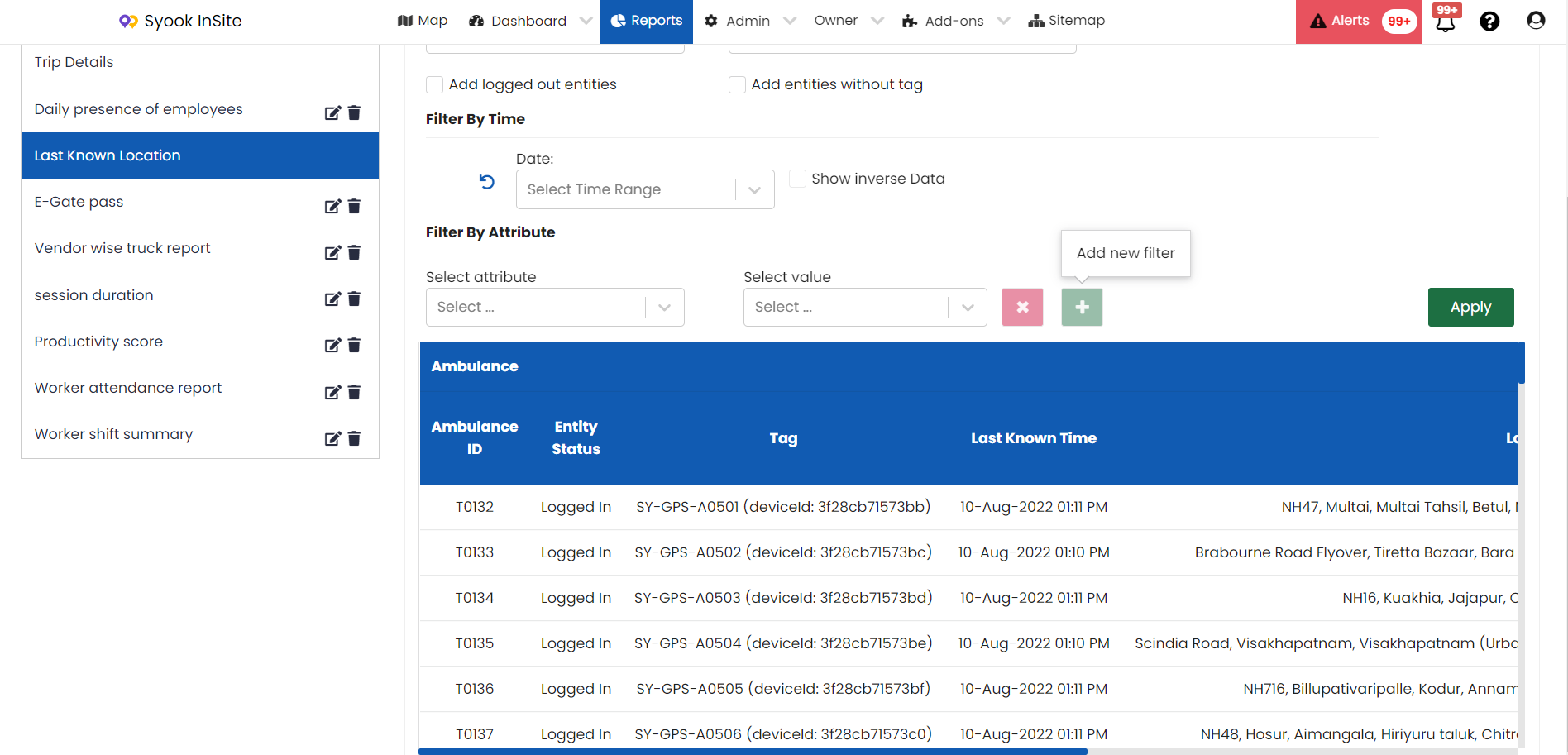
The following columns are available in the report
1. Main attribute(selected in the entity group configuration)
2. Entity Status
3. Tag
4. Last Known Location
5. Last Known Time
If additional attributes are selected, those columns will also be shown in the report.
If entities whose last known location is not available need to be shown in the report, enable the Show Inverse Data. For enabling the inverse data, date filter has to be selected.
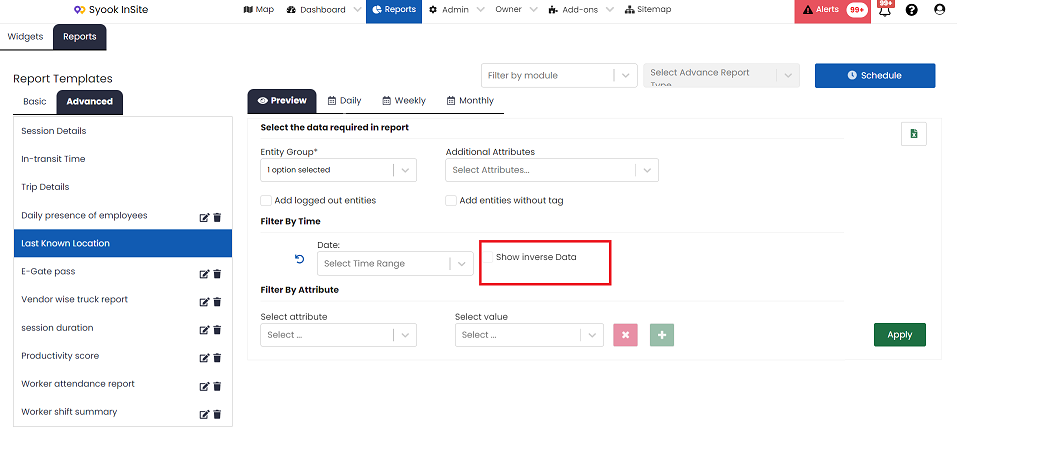
This shows the entities whose last known location is not available for the selected time range.