
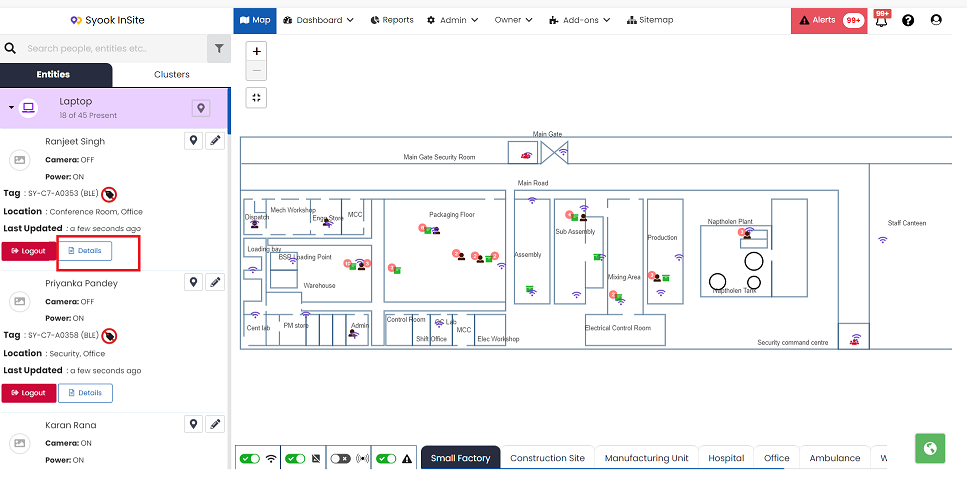
Clicking on the Details button of the entity as highlighted above, shows the Entity trends and the Timeline Records as shown below.
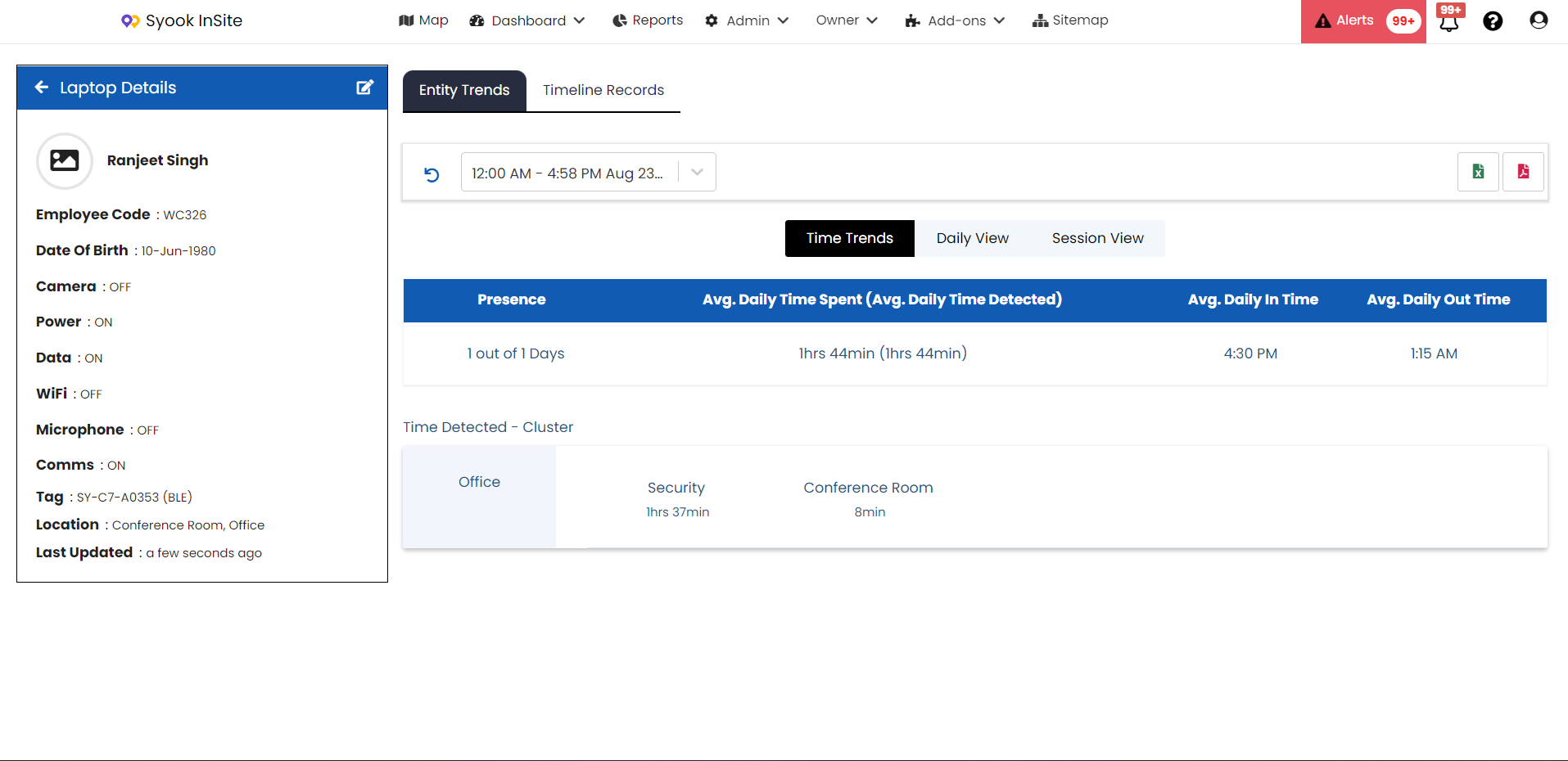
In the left side, it shows the entity details.
In the right side, it shows the Entity trends and the Timeline records.
Time Detected - Cluster
It shows the time detected in the clusters
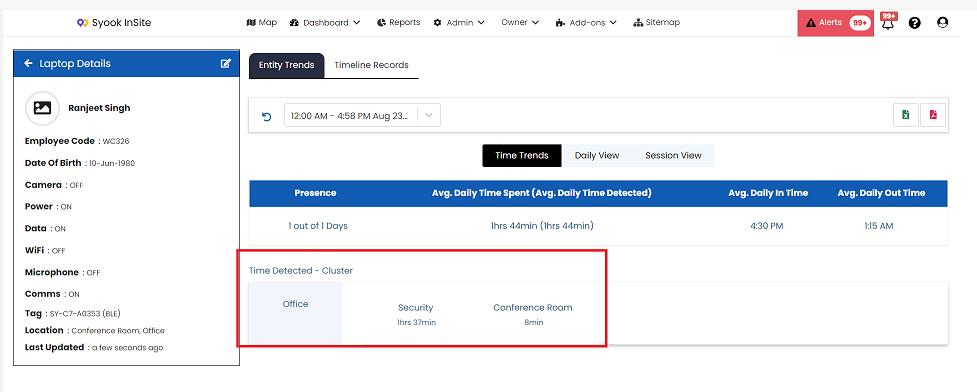
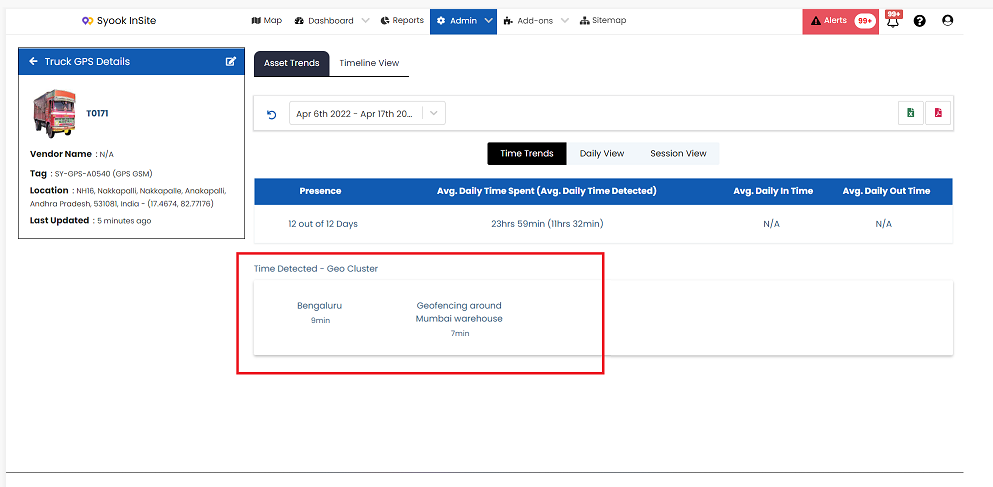
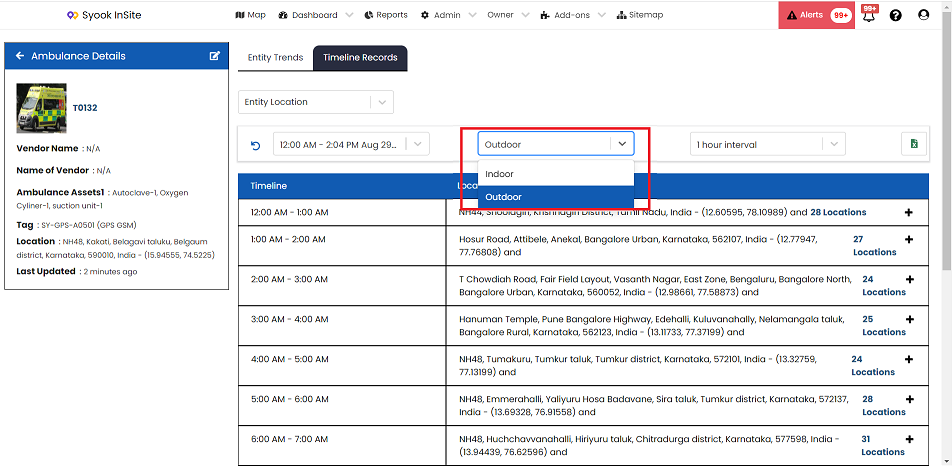
For GPS enabled entity groups, entities detected in Geo-clusters, time detected in geo-clusters will be shown as shown below.
If GPS Add-on is enabled, the following screen will be shown where we can select if we want to see the timeline for Indoor or outdoor.
Entity Trends
The following information are available in the Entity trends.
1. Time trends
2. Daily View
3. Session View
Time Trends
It shows the presence, Average Daily time spent and Average Daily Time Detected, Average Time In and Average Time out.
Presence
It shows the daily presence of the entity for the selected time period
Average Time Spent
It shows the Time difference between log in and logout
Average Time Detected
It shows the time for which the entity was detected by the gateways.
Time In
It shows the Login Time.
Time Out
It Shows the Logout Time.
Daily View
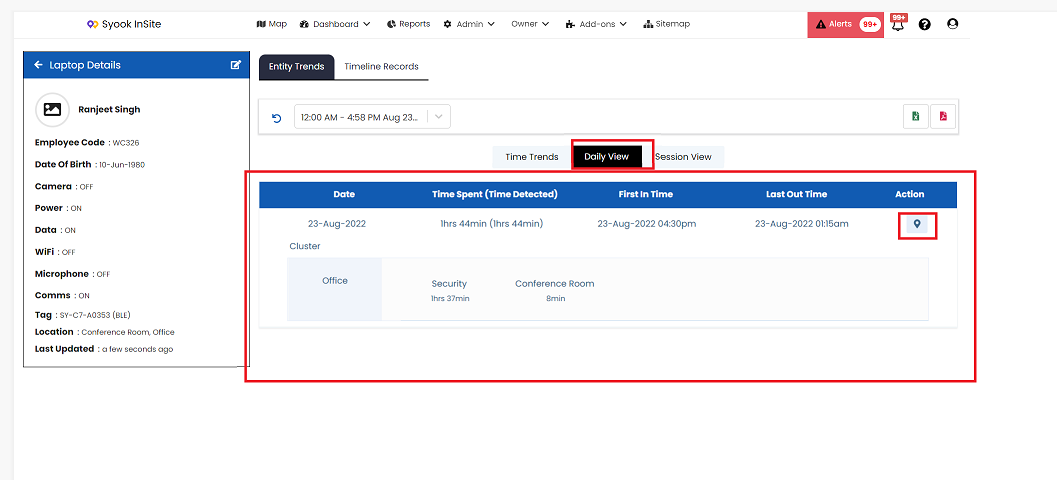 It provides the information on a daily basis for the selected period of time as shown above.
In the Daily View, it shows the following details on a daily basis.
Time spent ( Time Detected)
First In Time
Last Out time
Clicking on the location icon as highlighted above, shows the time detected in different clusters.
Session View
A login logout is called as a session. If entity logins and logout twice a day, it is considered as 2 sessions for the same day.
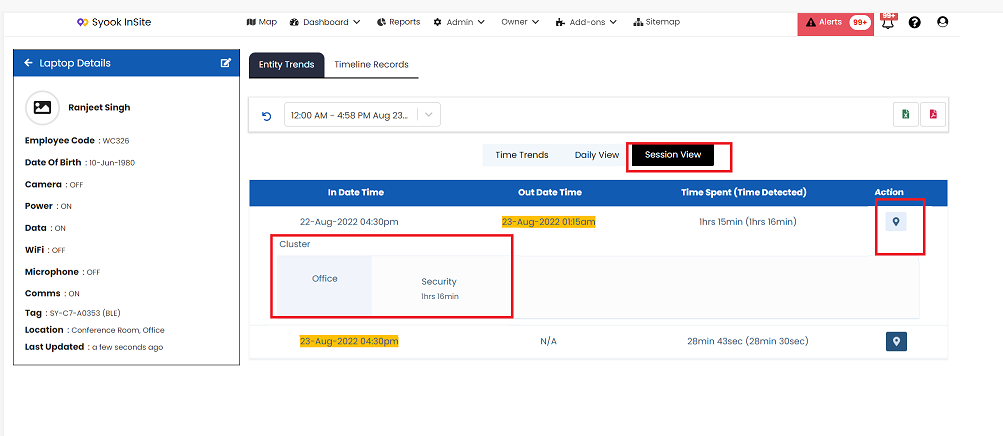
It provides the login time, logout time, time spent(time detected) and time detected in different clusters.
Timeline Records
It helps to monitor the movement of entities for a given period of time.
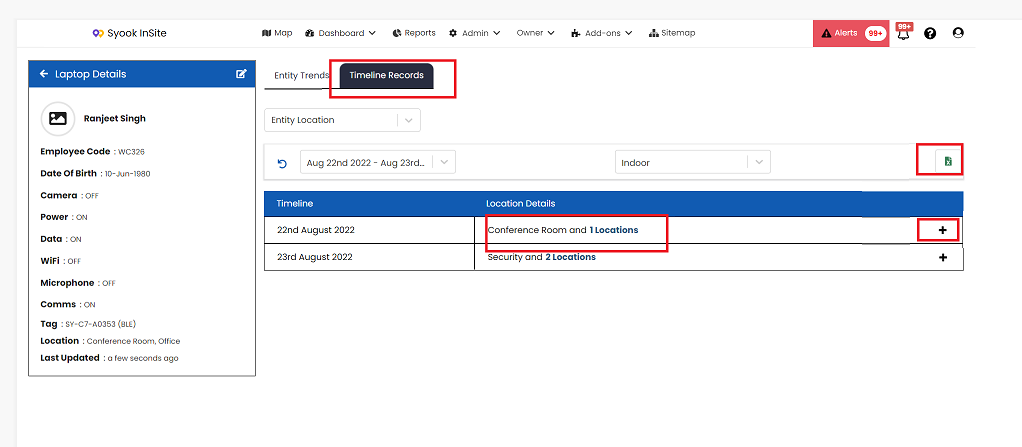
It shows the movement of entity for the given dates.
Clicking on the + icon, shows the clusters visited by the entity for the selected time interval.
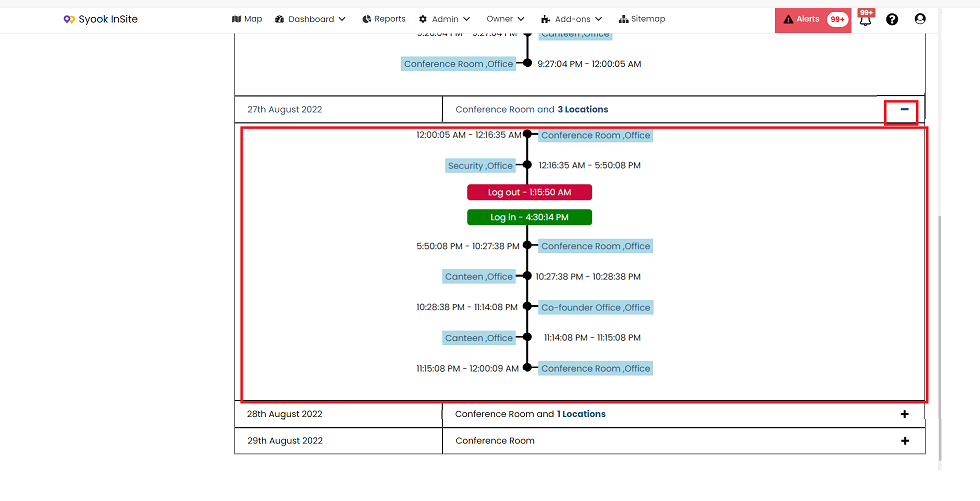
Clicking on the ‘-’ icon, collapses the view.
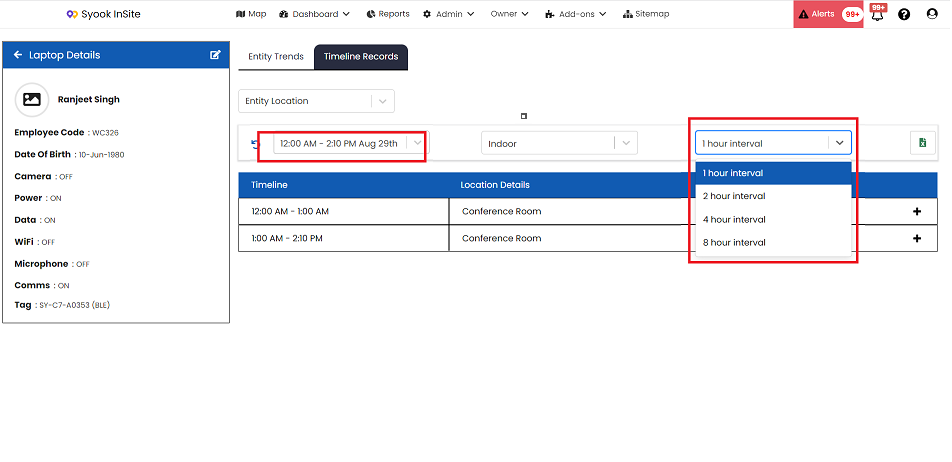
When the same date is selected in from and to dates, it shows the option to select the required time interval as shown below.
Click on the Next button in the module setup to go to the Users Step